Reading Mode
On This Page
Quick Answer
Businesses already running on EOS® can configure monday.com to track their V/TO, Rocks, Scorecard, Issues, and Level 10 Meetings alongside daily work. Standard can support a small setup; Pro adds automation capacity and access controls. Check current pricing for seats and credits.
Best for: Teams connecting leadership priorities with daily operations.
Not ideal for: Teams wanting ready-made leadership workflows with minimal configuration. Consider EOS One, Ninety, or Strety.
Key Takeaways
- Five connected boards provide a practical starting point for tracking your V/TO, quarterly Rocks, weekly Scorecard, Issues, and Level 10 Meeting actions in monday.com.
- Clear owners, preserved weekly results, and a leadership dashboard help connect quarterly priorities with daily work.
- Automations can reduce recurring reminders and follow-ups. Meeting summaries and proposed action items still need human review.
- Plan selection depends on automation volume, permissions, and reporting needs. Budget for paid seats, applicable credits, and any additional services.
- Quarterly planning uses the information already maintained in your boards. Preparing that information is separate from the full-day leadership meeting.
- Dedicated software offers ready-made leadership workflows. monday.com requires configuration and ongoing maintenance, but can bring leadership tracking and operational work into the same platform.
Why Trust This Content
This guide comes from the team that builds these systems for clients, not from a vendor’s marketing page. Camel Tech is a business systemization consultancy with more than 100 client implementations across 15+ industries on ClickUp, Notion, and monday.com, and a monday.com Certified Bronze Partner.
The board architecture in this guide comes from that work, not from reading documentation. One published example is Be The Light Decor, a lighting services company that moved to a single monday.com workspace with an EOS® layer and automated weekly Level 10 Meeting items. Our case study records an 85% reduction in manual admin. Other published monday.com projects include Nail It Construction and The Hydration Co.
How We Researched This
This guide is built on:
- Hands-on EOS® builds in monday.com for client leadership teams
- monday.com pricing, plan limits, and AI credit rules, checked against monday.com’s pricing page and support documentation in November 2026
- EOS® agendas, Rocks, Scorecard, and Level 10 Meeting rules, checked against EOS® Worldwide’s published guidance
- Ratings and public reviews for monday.com and the EOS® software tools from G2 and Capterra, November 2026
- monday.com’s May 6, 2026 platform announcement
What Is EOS®, Exactly?
EOS® is a business operating system designed for entrepreneurial companies. Gino Wickman introduced it publicly in his 2007 book, Traction: Get a Grip on Your Business. Its tools help leadership teams clarify their vision, establish accountability, and maintain a consistent execution rhythm.
The framework rests on six components: Vision (where you're going), People (who're in the right seats), Data (measuring what matters), Issues (solving problems permanently), Process (documenting how you work), and Traction (executing through 90-day priorities).
Think of EOS® as the operating system for your leadership team's brain. It's not project management. It's not a CRM. It's the weekly and quarterly discipline that keeps every leader rowing in the same direction.
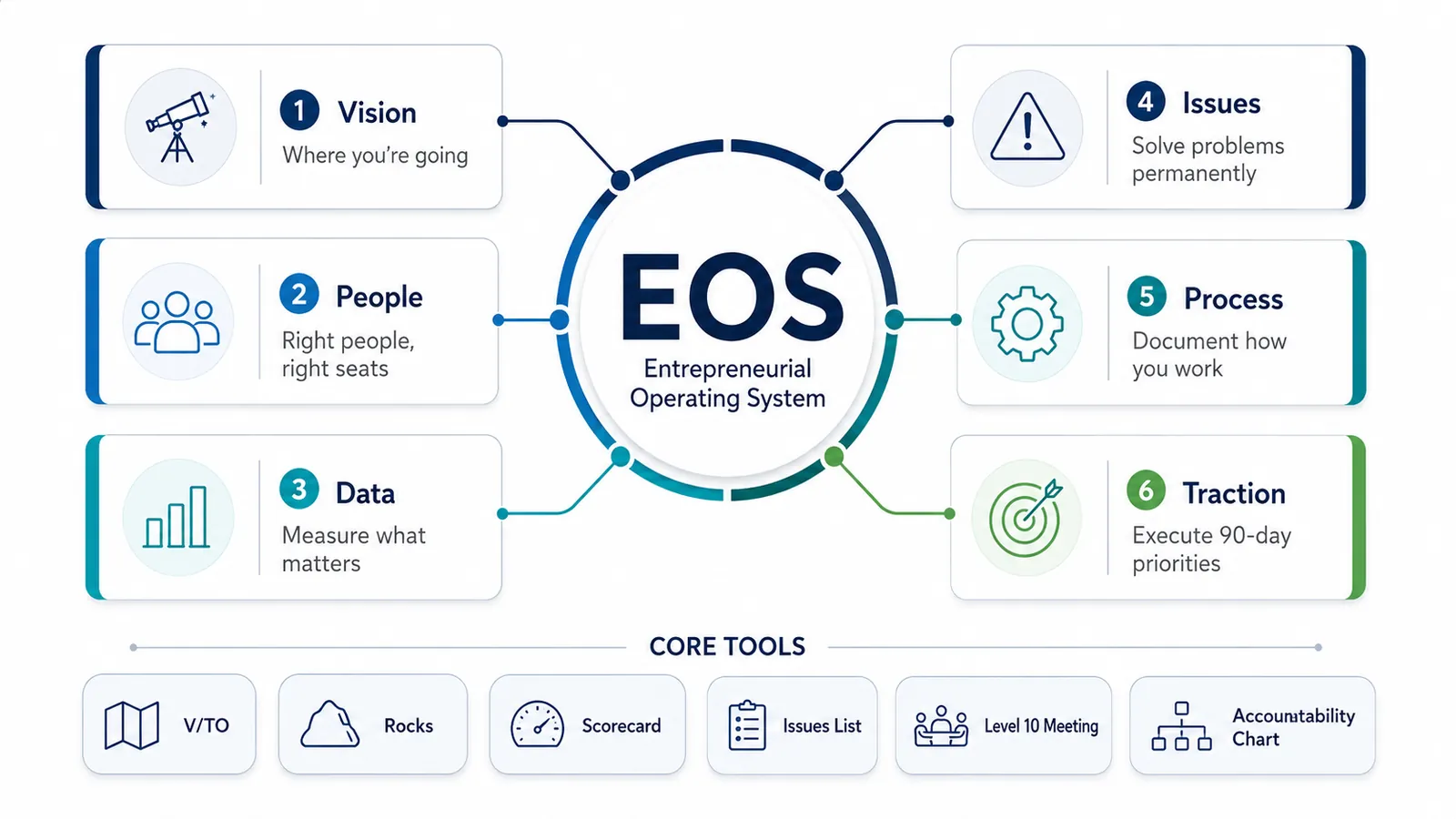
The core tools are:
- V/TO (Vision/Traction Organizer): A two-page tool answering eight questions about your company’s vision and execution plan.
- Rocks: 90-day priorities, one owner per Rock, reviewed weekly.
- Scorecard: 5 to 15 weekly KPIs, each either "on track" or "off track."
- Issues List: A running log of problems to be solved using the IDS (Identify, Discuss, Solve) method.
- Level 10 Meeting (L10): A 90-minute weekly meeting following a fixed 7-step agenda.
- Accountability Chart: A roles-and-responsibilities chart (not an org chart) showing who owns what.
What Software Do Teams Use to Run EOS®?
Businesses can use dedicated software or configure a general work platform such as monday.com. The examples below compare product scope and suitability using official vendor information. They are not a market-share ranking.
| Tool | Listed price | G2 | Capterra |
|---|---|---|---|
| EOS One | $10 per user per month, free trial | 4.8 (3 reviews) | 5.0 (4 reviews) |
| Ninety | Free for one user, paid editions up to $16 per user per month | 4.7 (about 100 reviews) | 4.7 (55+ reviews) |
| Strety | From $13 per user per month | 4.9 (25 reviews) | Few reviews |
| Bloom Growth | From $149 per month, flat rate | 4.3 (33 reviews) | 4.5 (10 reviews) |
| Success.co | $12 per user per month | 4.9 (19 reviews) | Minimal coverage |
EOS One
EOS One is the official software for running EOS®, built by EOS Worldwide, the organization behind the book Traction. It is built to run Level 10 Meetings, with tools that include the Accountability Chart and People Analyzer.
- Best for: teams that want the official software with a free owner seat and straightforward pricing for additional paid users
- What reviewers like: a clean, user-friendly interface and an affordable way to run EOS®
- What reviewers flag: a learning curve for new users and a wish for more features
- Review base: very small so far, so treat the ratings as early signals
Ninety
Ninety turns the EOS® tools into software: V/TO, Scorecard, Rocks, meetings, and Issues in one platform. It also serves companies that do not run EOS®.
- Best for: teams that want the full EOS® toolset in one place
- What reviewers like: support for the EOS® model and easy tracking of goals and milestones
- What reviewers flag: limited customization (14 G2 reviews mention it) and a weaker mobile experience (G2 mobility score of 6.8)
- Plan note: the pre-built Quarterly Session agenda requires the Accelerate plan or higher
Strety
Strety is an EOS® platform for small to mid-sized businesses. According to Strety, it adds playbooks, performance management, project management, and surveys to the core EOS® tools.
- Best for: teams that want EOS® plus goals and performance tools
- What reviewers like: an intuitive design (7 G2 reviews) and strong collaboration
- What reviewers flag: a learning curve that assumes you already understand EOS® and a smaller customer base
Bloom Growth
Bloom Growth, formerly Traction Tools, keeps its focus on the weekly meeting: check-ins, Scorecards, Rocks, and IDS in a simple interface.
- Best for: teams that want a meeting-first tool at a flat monthly rate
- What reviewers like: ease of use (4.3 on Capterra) and customer service (4.7 on Capterra)
- What reviewers flag: one Capterra reviewer rated it 2.0 for limited capability beyond meetings
Success.co
Success.co offers a Free Forever plan for its V/TO, Accountability Chart, and Organizational Checkup, alongside a paid All Inclusive plan. Paid pricing varies by team size and billing cycle. Optional enterprise sign-on and directory-sync features are charged separately.
- Best for: small teams that want a simple setup
- What reviewers like: attentive support and easy implementation
- What reviewers flag: little. The review base is small, and Capterra coverage is minimal
How to Choose Between Them
- Pick EOS One if you want the official tool with a free owner seat and $10 monthly pricing for each additional paid user
- Pick Ninety if you want the largest review base and a full EOS® toolset
- Pick Strety if you also want goals and performance management
- Pick Bloom Growth or Success.co for a simple, meeting-first setup
- Pick monday.com if your team already runs projects, CRM, or operations there
For a six-person leadership team that includes the organization’s owner, EOS One costs $50 per month after the trial: the owner’s seat is free, and the other five paid users cost $10 each.
A six-person team purchasing ten monday.com Pro seats has a regular annual-billing equivalent of $220 per month, including the minimum credit purchase under the applicable seats-plus-credits model. Introductory offers can reduce that amount. Compare the current monday.com checkout total, tax, and required features before choosing. monday.com also supports operational work beyond leadership meetings.
Benefits of Using Monday.com for EOS®
The main benefit is that EOS® runs in the same platform as your projects, CRM, and operations, so Rocks and Issues sit next to the work behind them.
- One platform for EOS® and daily work: Rocks can connect to live project boards, so a Rock’s status reflects real progress
- Automation takes over meeting prep: at Be The Light Decor, recurring tasks, automated weekly Level 10 Meeting items, and sprint planning produced an 85% reduction in manual admin, according to our case study
- One dashboard across all five boards: Pro dashboards combine up to 20 boards
- Company-wide visibility at no seat cost: viewers are unlimited and free, so the whole company can see the V/TO and Rocks
- AI that works from your EOS® data: the AI Notetaker, AI blocks, and agents turn meetings and updates into board items, metered in AI credits
Common Challenges of Running EOS® in Monday.com
The main challenges are setup effort, plan limits, and a learning curve for leaders who have never worked in boards.
- Nothing is built for EOS® out of the box. Start from the five-board architecture above so you are not designing from scratch
- Automation caps. Standard allows 250 actions a month, and Pro allows 25,000, so most EOS® teams need Pro
- AI credits are metered. The Notetaker uses 120 credits per meeting hour, so record Level 10 Meetings and quarterly sessions only
- Seat buckets. Six leaders pay for ten seats, so give the spare seats to department heads
- Permissions are tiered. Column permissions start on Pro, while item permissions, the audit log, and IP restrictions need Enterprise
- Formula and dashboard limits. Formula columns cannot trigger automations, and dashboards cap at 20 boards and 20,000 items across connected boards, so use Status columns for triggers and archive old Scorecard months
What's New in Monday.com That Makes EOS® Work Better
Three monday.com capabilities can support leadership workflows: Notetaker for meeting capture, Workflows for automating connected processes, and Vibe for building custom interfaces from prompts. Their intelligent features consume credits, and availability and charges depend on your plan and usage. Publishing a live Vibe app also requires a paid app bucket.
If you looked at Monday.com two or three years ago and dismissed it as "just a task board," you're looking at a fundamentally different product today.
In May 2026, Monday.com officially rebranded as the AI Work Platform, describing it as the most significant change in the company's history. The core of the rebrand: AI agents are now natively embedded into every workflow, and any team member can configure and deploy them without technical skills. For EOS® teams, this matters in three specific ways.
AI Notetaker: A bot joins your weekly L10 meetings (Zoom, Google Meet, or Teams), records the conversation, creates transcripts, and automatically populates action items onto the relevant Monday boards. This closes the biggest gap in running EOS® in Monday.com: capturing to-dos without someone manually typing them in during the meeting. A 90-minute Level 10 Meeting uses 180 credits.
AI Workflows: Traditional automations follow rigid if-then rules. AI Workflows reason contextually. For example, when a Rock goes off track, an AI block can summarize its latest updates and attach the summary to the new Issue. That’s EOS® process management on autopilot.
Monday Vibe: Generate a custom interface from prompts, such as a leadership meeting view or Rock review screen. Budget for building and running intelligent features, and check the paid app bucket required to publish a live app. Read our monday.com Vibe guide for additional context.
The platform also now connects natively to Claude, ChatGPT, Copilot, and Gemini through one-click connectors.
Dashboard board limits matter for EOS® teams: Pro dashboards combine up to 20 boards (Standard 5, Enterprise 50). This is crucial for EOS® teams who need a single executive view across the V/TO, Rocks, Scorecard, and Issues boards simultaneously.
Create a Dedicated Workspace Called "EOS®" or "Operating System"
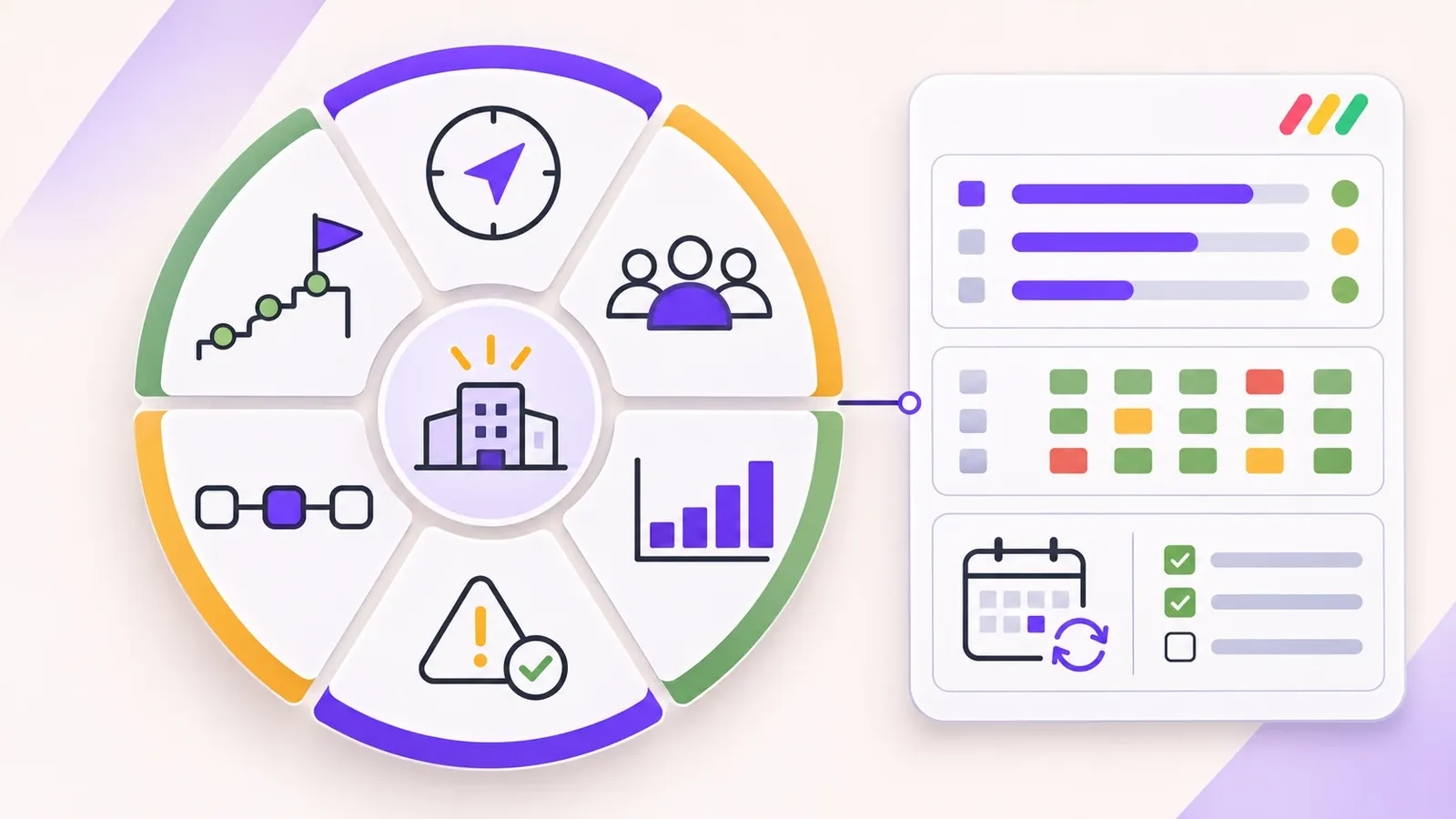
Start with a dedicated leadership workspace containing five boards: V/TO, Rocks Tracker, Scorecard, Issues List, and Level 10 Meeting.
This is a suggested configuration, not a complete implementation of the framework. Connect the relevant board data to a dashboard and add links to supporting documents, including the Accountability Chart. Adjust the structure to match how your leadership team already works.
Board 1: The V/TO Board (Your Company's North Star)
The V/TO is the one document every EOS® company lives by. It answers: What are your core values? What's your core focus? What's your 10-year target, 3-year picture, and 1-year plan? What are this quarter's Rocks and current Issues?
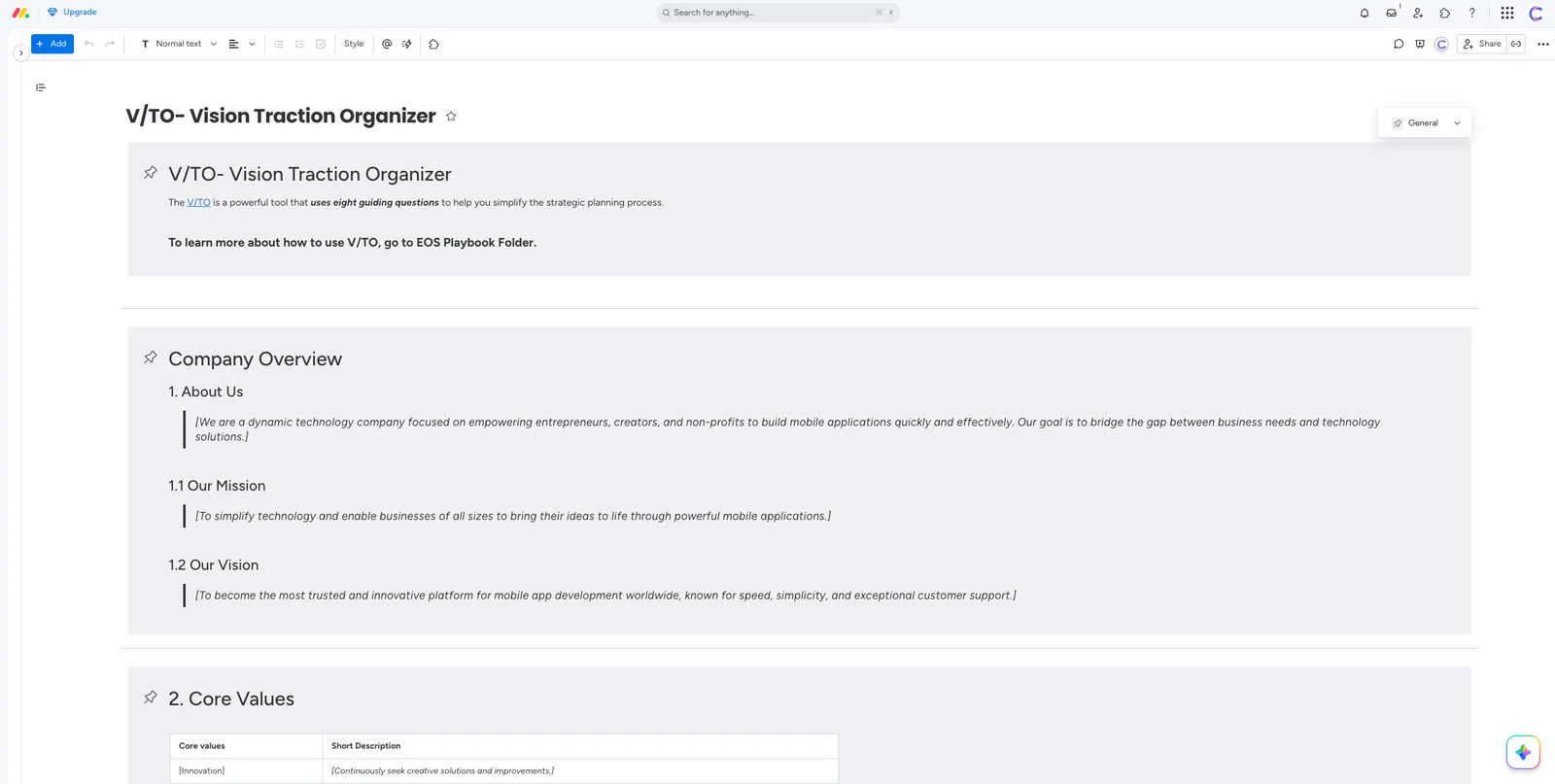
In Monday.com, build this as a simple board with two groups: "Vision Side" and "Traction Side." Each row is one V/TO question. Use a Long Text column for the answer, a Status column for "Locked / In Review / Draft," and a People column for the owner.
This board doesn't change weekly. It's your reference document. Share it as a Dashboard widget on your EOS® executive view so every leader sees it without opening the board.
Pro tip: Lock the Vision Side items once finalized in your annual planning session. Use column permissions (Pro and Enterprise) to limit who can edit the Answer column to the Visionary and Integrator.
Board 2: Rocks Tracker (Your 90-Day Priorities)
Rocks are the backbone of the Traction component. Every quarter, the company carries 3 to 7 Rocks. Each leadership team member also owns personal Rocks that support them, and fewer is better.
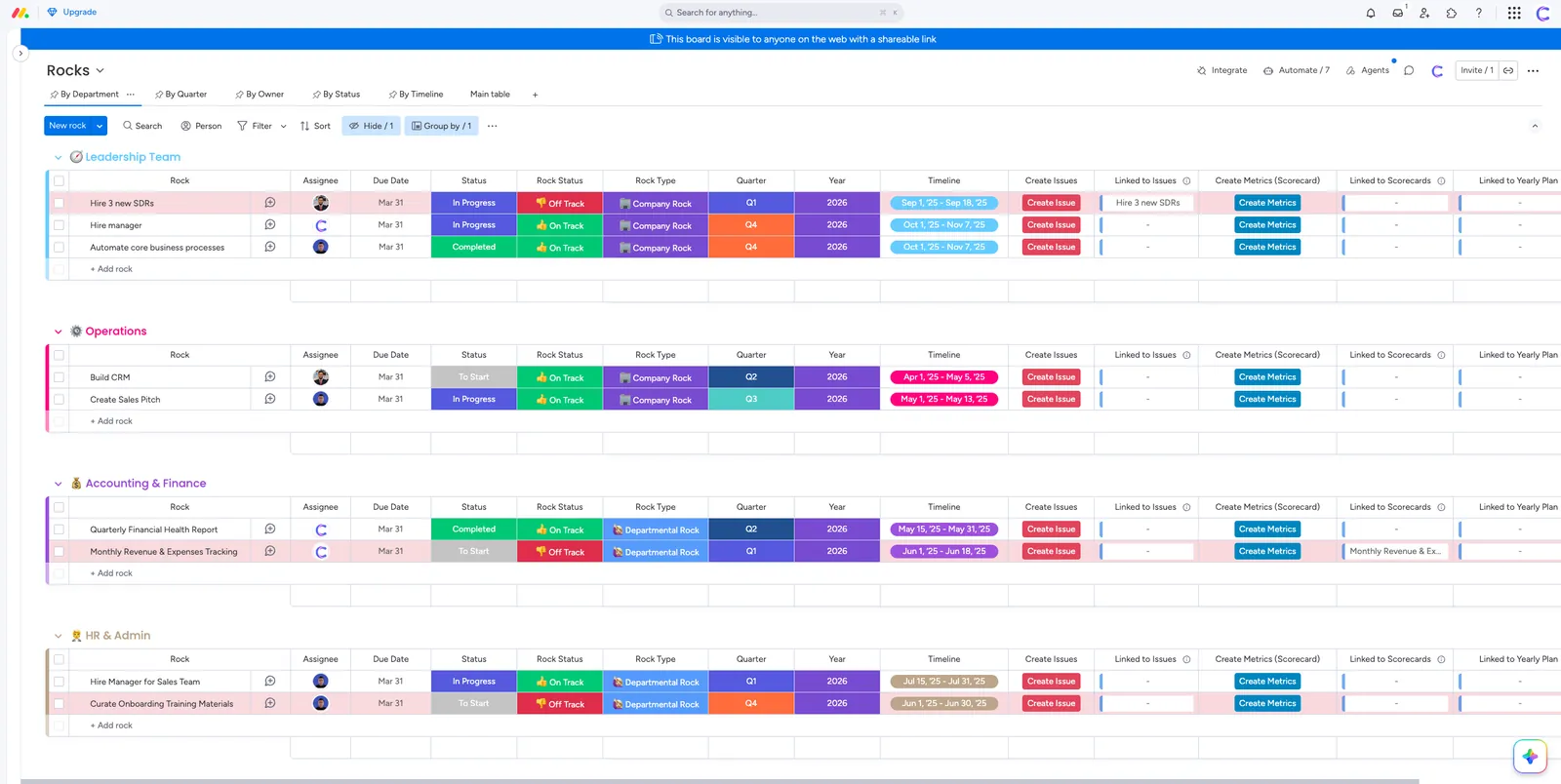
Build this board with one group per quarter (Q4 2026, Q1 2027, etc.). Each row is one Rock. Use these columns:
| Column | Type | Purpose |
|---|---|---|
| Rock Name | Text | The 90-day priority statement |
| Owner | People (single) | One person per Rock, per EOS® rules |
| Quarter | Dropdown | Q4 2026, Q1 2027, etc. |
| Status | Status | On Track / Off Track / Complete |
| % Complete | Numbers (0-100) | Visual progress indicator |
| Due Date | Date | Last day of the quarter |
| Linked Issues | Connect Boards | Pulls in related Issues automatically |
| Weekly Update | Long Text | Owner's one-line update for L10 |
Set up an automation: when Status changes to "Off Track," create an item in the Issues board and notify the Integrator. This is EOS®-native thinking baked into your workflow.
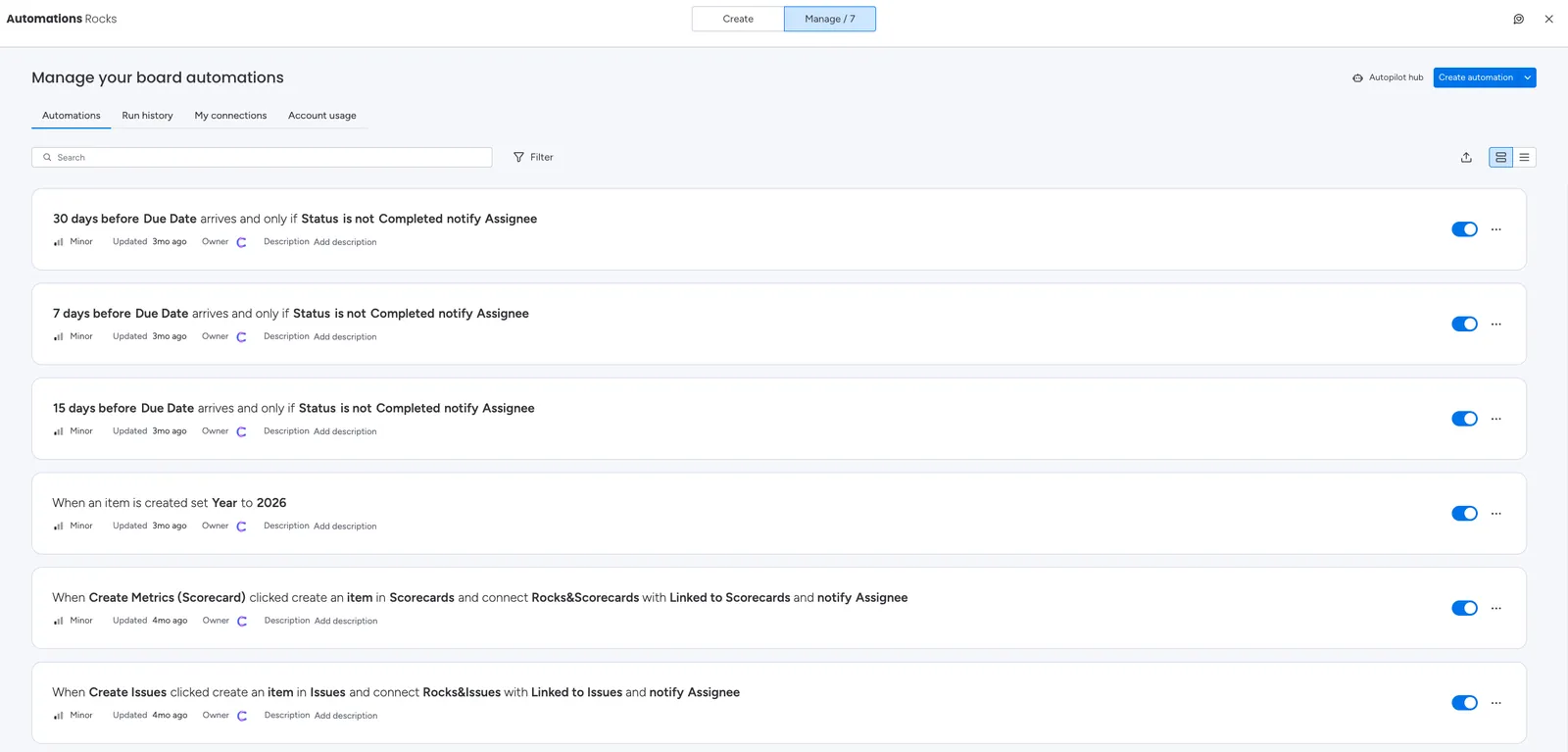
During L10 meetings, each Rock owner says "on track" or "off track." One click updates the board. Anything off track drops to the Issues board automatically.
Board 3: Scorecard (Your Weekly Pulse)
Your Scorecard tracks 5 to 15 weekly KPIs. The goal is to know in under 5 minutes whether your business is healthy.
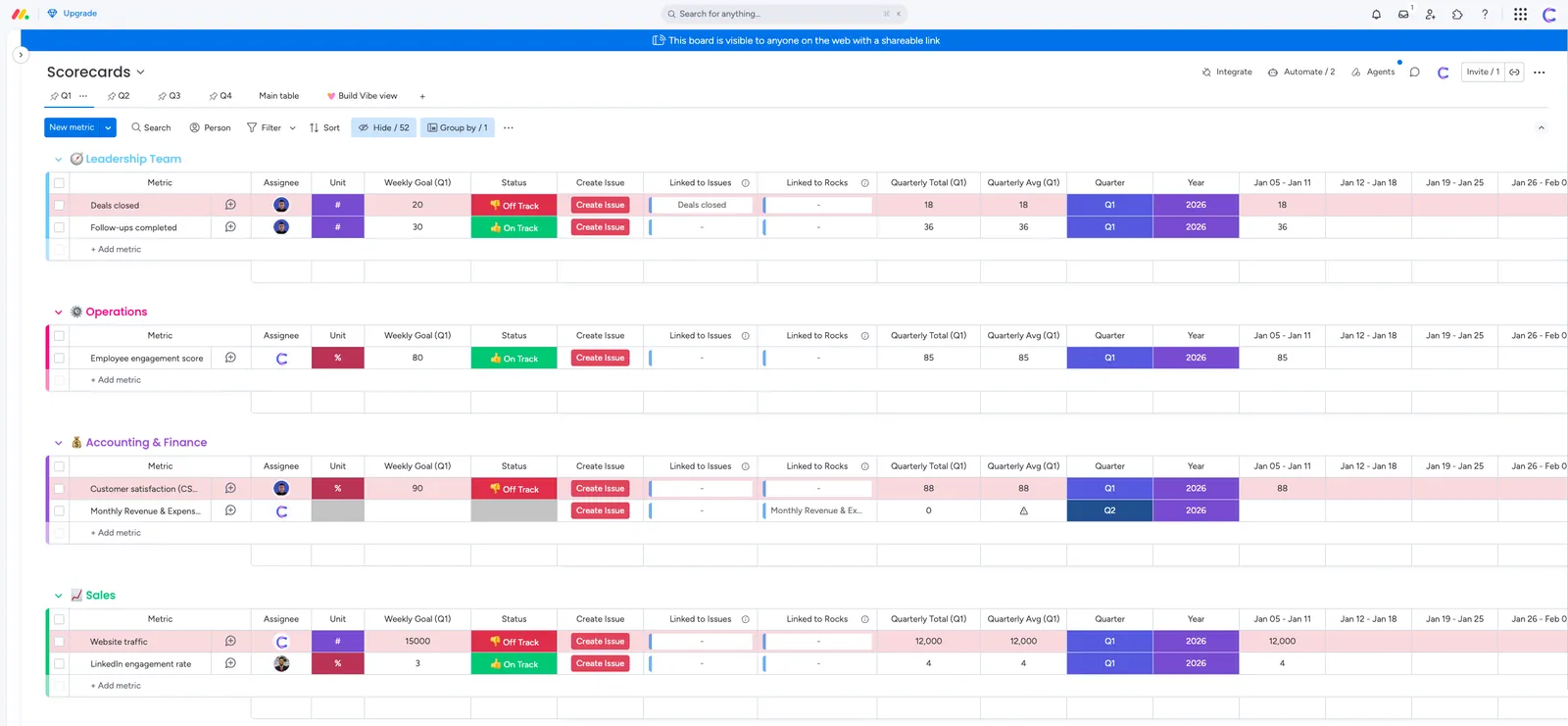
Create one item per metric per week so new results do not overwrite previous weeks. Group items by month or quarter and include these fields:
| Column | Type | Purpose |
|---|---|---|
| Metric Name | Text | The KPI being tracked |
| Owner | People (single) | Who updates this number weekly |
| Goal | Numbers | Weekly target |
| Actual | Numbers | This week's reported number |
| Week Of | Date | The Monday of the reporting week |
| Status | Formula or Status | Auto-calculated On Track / Off Track |
| 13-Week Trend | Mirror or Chart widget | Visual pattern over a quarter |
| Notes | Long Text | Context if the metric is off |
Add a formula column that compares Actual to Goal and returns On Track or Off Track, then apply conditional coloring to turn the result green or red. This removes subjectivity from the review. Formula columns cannot trigger automations, so keep a separate Status column if an Off Track metric should create an Issue.
Add a Chart widget to your EOS® Dashboard showing each metric as a trend line. Leadership gets a visual pulse of the business at a glance, without any manual updates.
Set a weekly automation: every Monday at 8 AM, remind each Scorecard owner to fill in their number before the L10 meeting.
Board 4: Issues List (Your IDS Engine)
The Issues List is where problems go to get solved permanently, not discussed endlessly.
Build this as a single board with two groups: "Issues Parking Lot" (anything raised during the week) and "Resolved Issues" (archived for reference).
Columns:
| Column | Type | Purpose |
|---|---|---|
| Issue | Text | One-line description |
| Raised By | People | Who flagged it |
| Date Raised | Date | When it entered the Parking Lot |
| Priority | Status | High / Medium / Low |
| IDS Status | Status | Identified / Discussing / Solved / Carry Forward |
| Owner | People | Who's accountable for solving |
| Linked Rock or Project | Connect Boards | Optional, for traceability |
| Resolution Notes | Long Text | What was decided and the action taken |
During your L10 meeting, the team prioritizes the top 3 issues from the Parking Lot and works through IDS. Once an issue is solved, drag it to the Resolved group. Set a Monday automation to move items to "Resolved Issues" when IDS Status changes to "Solved."
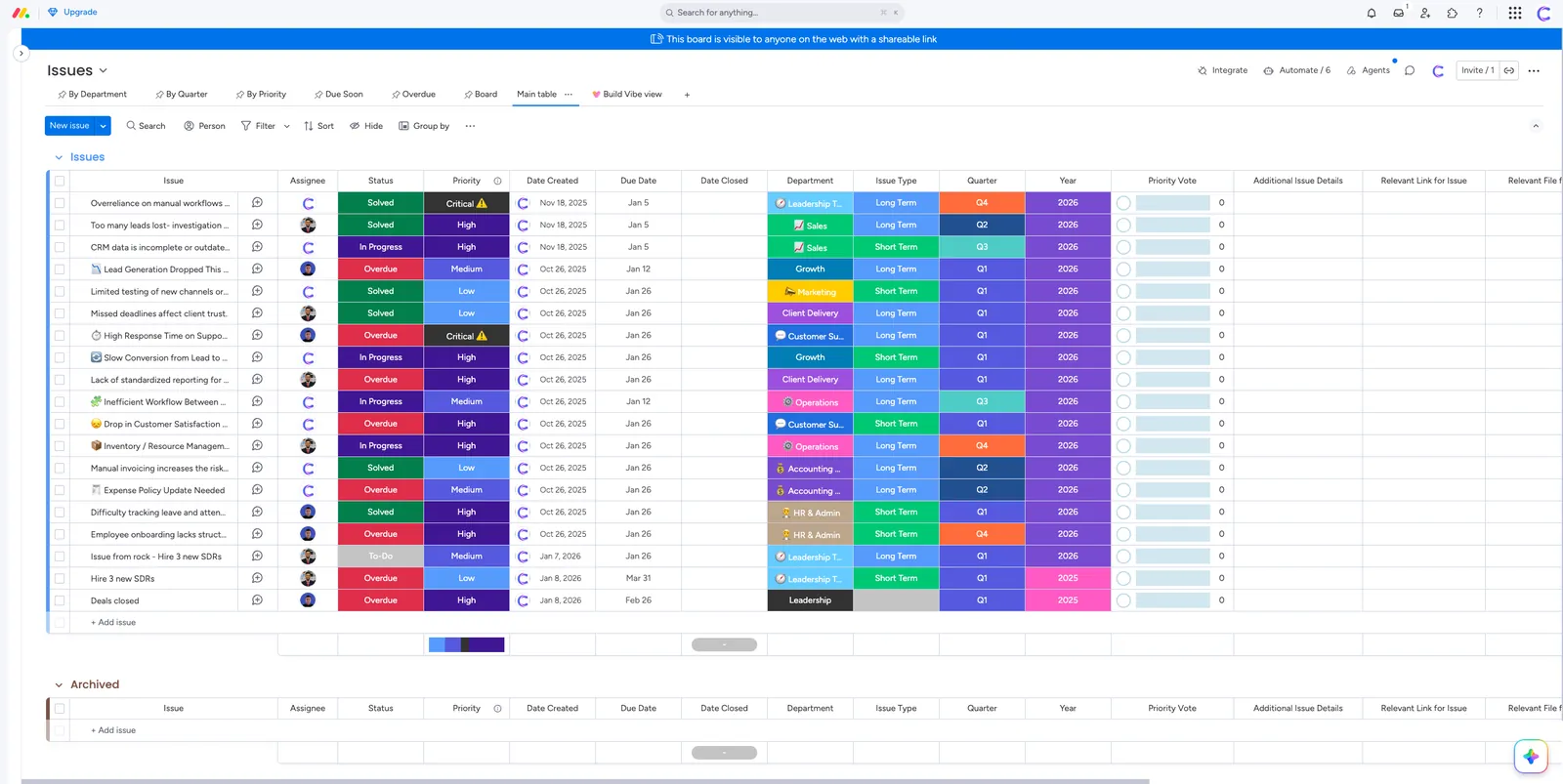
This board is the most active one in your EOS® system. Encourage team members to add issues throughout the week, not just in the meeting. The Issues List should never be empty. If it is, your team isn't being honest.
Board 5: Level 10 Meeting Board (Your Weekly Rhythm)
This is the operational heartbeat of your EOS® system. Every L10 follows the same 7-step agenda: Segue (5 min), Scorecard (5 min), Rock Review (5 min), Headlines (5 min), To-Do List (5 min), IDS (60 min), Conclude and Rate (5 min).
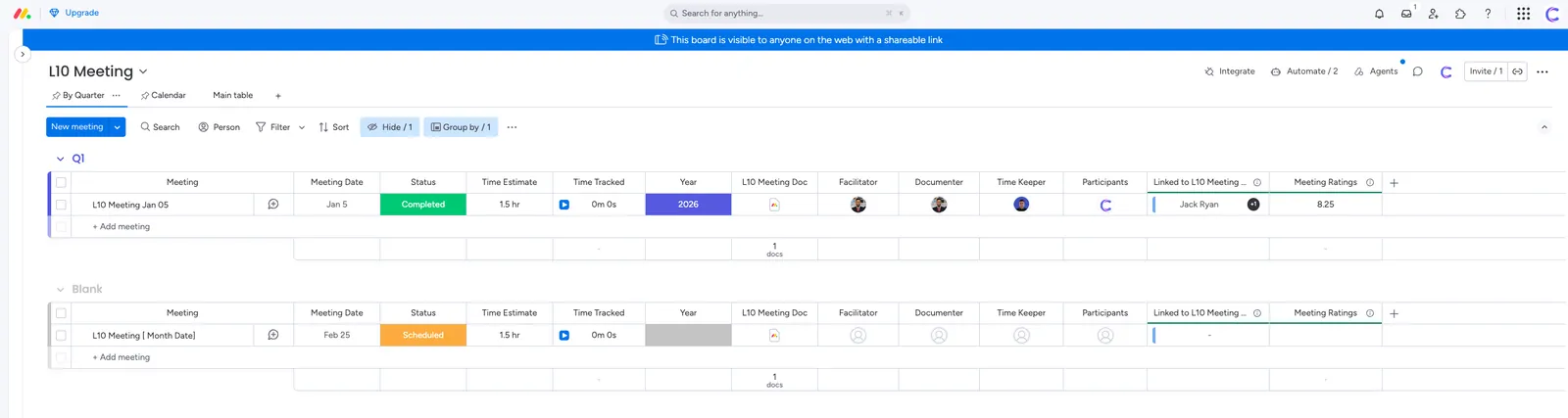
Build this board to mirror that agenda. One group per section.
For the To-Do List section, each row is a 7-day action item. Columns: Task, Owner, Due Date, Status (Done / Not Done), Created In Meeting (date).
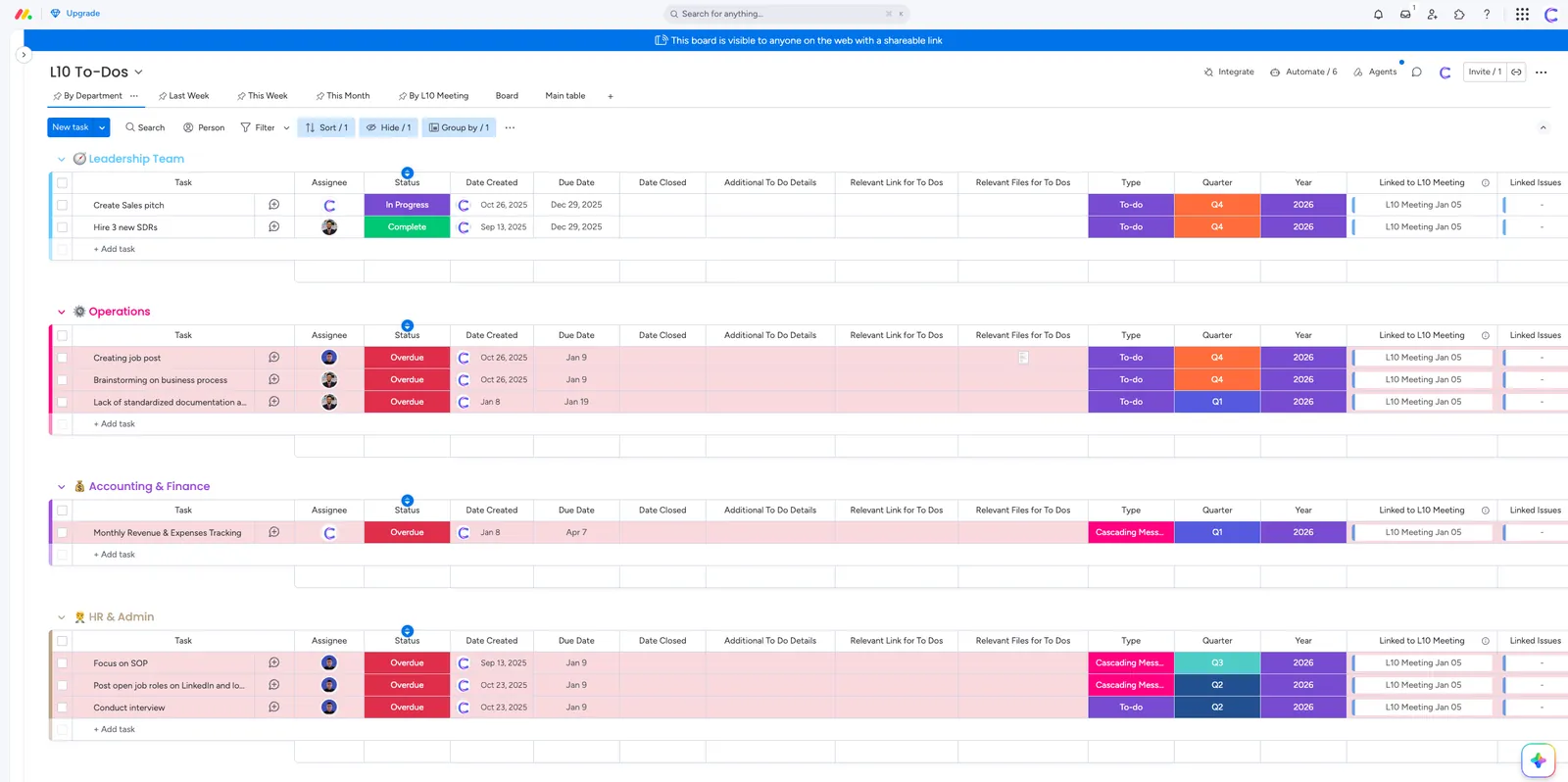
Set an automation: at the start of each L10 meeting day, send each team member a summary of their open To-Dos. After the meeting, any unchecked To-Dos automatically roll to the following week with a flagged status.
For Headlines, create a simple log: each row is a customer or employee update, categorized as Good News or Needs Discussion.
For the Conclude section, add a Rating column (1-10) where each team member scores the meeting. Build a widget on your EOS® Dashboard showing meeting rating trends over time. If your average L10 rating falls below 8, you have a systemic issue to solve.
Connect the AI Notetaker to your recurring L10 calendar event. After each meeting, it produces a transcript, summary, and action items you can send to a board. Review them before the To-Dos go live.
What should your EOS® Dashboard show?
On the Pro plan, a dashboard can combine up to 20 boards, which covers all five EOS® boards with room to spare. Build your EOS® Dashboard with these widgets:
- Vision reference: A link to the approved V/TO, with an optional manually maintained summary.
- Rock progress: A chart filtered to the current quarter, showing completed and incomplete Rocks by owner.
- Scorecard: A table showing each metric’s latest result, target, and status, plus separate trend charts where useful.
- Open Issues: A count filtered to unresolved items.
- Meeting quality: Average participant rating by meeting date.
- Outstanding To-Dos: Open tasks due this week and overdue tasks, with owners and original due dates.
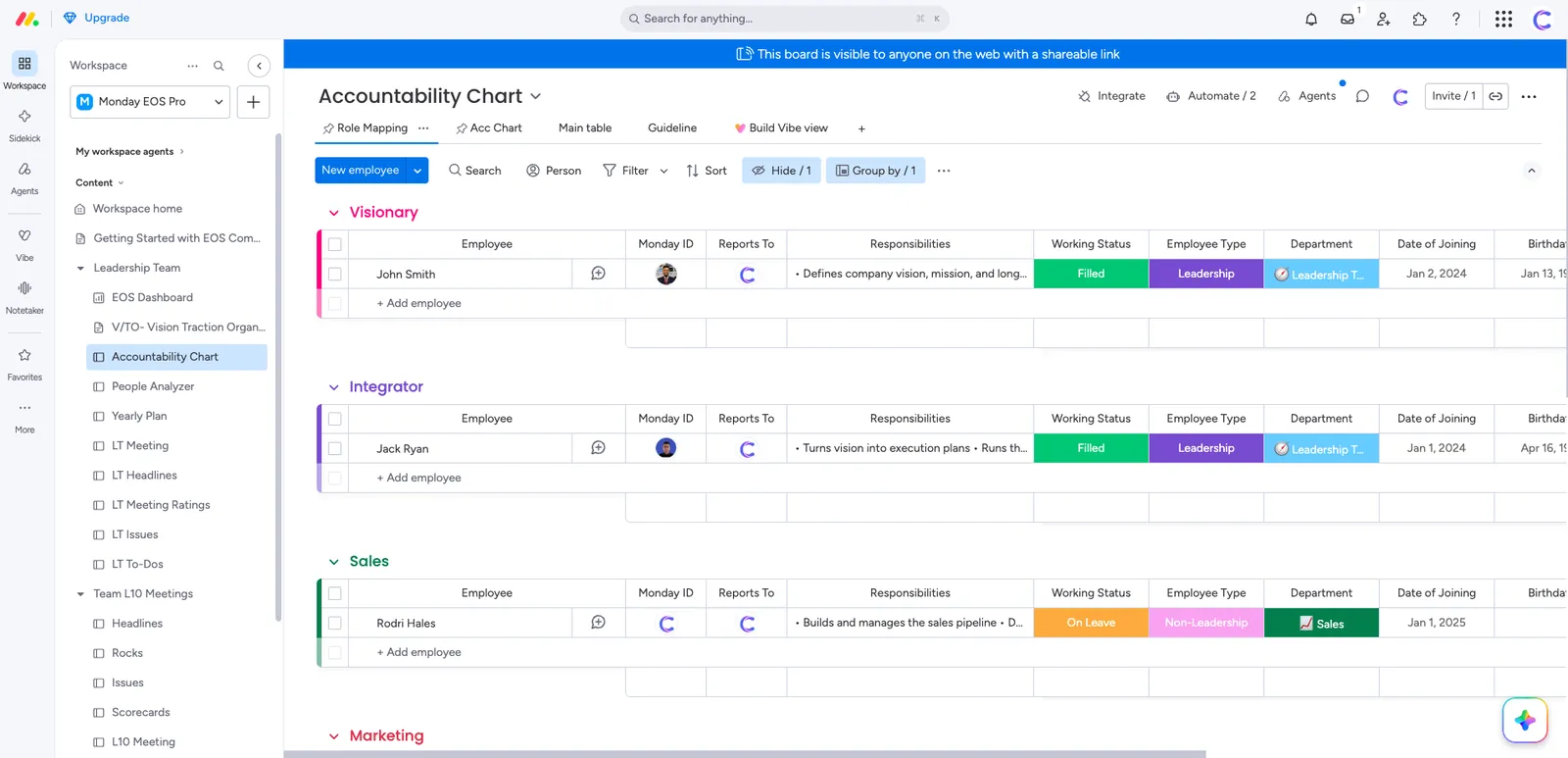
This dashboard becomes the first thing every leadership team member opens on Monday morning. No more hunting across five boards. The health of your business, your 90-day priorities, and your immediate actions are all visible in 30 seconds.
What About the Accountability Chart?
Maintain the Accountability Chart as a living reference that changes when your organizational structure or seat ownership changes.
You can represent it in WorkCanvas or a Monday workdoc and link it from the leadership dashboard. WorkCanvas has separate free and paid experiences, so check its canvas, element, and editing-seat limits before choosing it.
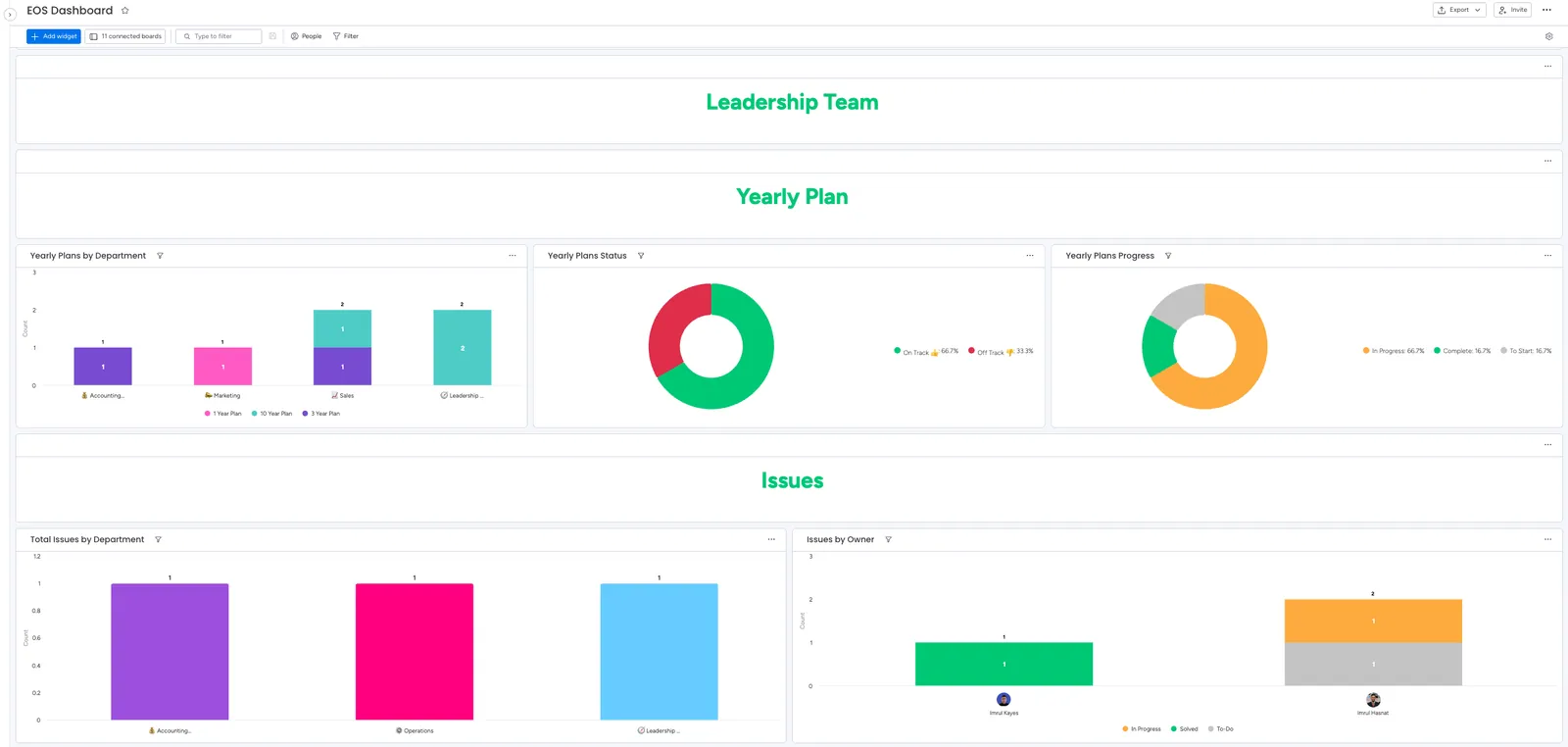
For a document-based version, list each seat, its major accountabilities, and its single accountable owner. The official Accountability Chart guidance recommends defining five major roles per seat.
Automating Your EOS® Rhythm: Key Recipes to Set Up
These suggested workflows reduce recurring administration. Build and test them against your actual fields, permissions, and available automation actions.
Weekly Scorecard reminder: Notify metric owners before the scheduled meeting. Confirm the reminder reaches the intended owner for each weekly record.
Rock alert: When a Rock becomes Off Track, create or link an Issue and notify the designated person. Prevent duplicate open Issues for the same obstacle.
To-Do follow-up: When a task reaches its due date and remains incomplete, notify its owner. Keep the original deadline visible.
Meeting summary: Use Notetaker to prepare a summary and proposed action items. Review owners, due dates, and destination boards before creating the tasks.
Consolidated summaries and duplicate checks may require additional workflow configuration. Monitor automation actions, integration actions, and credit consumption separately.
Pricing: What Does Running EOS® in Monday.com Actually Cost?
The right monday.com plan depends on your required permissions, reporting, and monthly automation usage. Standard can support a smaller configuration; Pro provides more capacity and additional controls. Compare the full subscription cost, including paid seats, applicable credits, taxes, and any extra services.
The examples below use dollar prices checked on November 8, 2026. Annual-billing figures are monthly equivalents paid annually, before tax and introductory discounts. Your billing country and account eligibility can affect the checkout total.
| Feature | Standard | Pro | Enterprise |
|---|---|---|---|
| Price per seat (annual) | $12/month | $19/month | Custom |
| Automation actions/month | 250 | 25,000 | 250,000 |
| Boards per dashboard | 5 | 20 | 50 |
| Private boards | No | Yes | Yes |
| Column permissions | No | Yes | Yes |
| Minimum AI credits/month | 2,000 | 3,000 | Custom |
| Suitable for EOS® | Not really | Yes | Yes, with extras |
All paid plans require a minimum of 3 seats. Seats are sold in buckets of 5 after the initial 3.
Cost Example: A Six-Person Leadership Team
monday.com sells subscriptions in seat bundles. A six-person team purchasing a ten-seat subscription would have the following regular costs under the applicable seats-plus-credits model:
| Annual-billing cost | Standard | Pro |
|---|---|---|
| Price per seat per month | $12 | $19 |
| Ten seats, monthly equivalent | $120 | $190 |
| Minimum credits per month | 2,000 | 3,000 |
| Credit cost, monthly equivalent | $20 | $30 |
| Total monthly equivalent | $140 | $220 |
| Annual total | $1,680 | $2,640 |
These are pre-tax, pre-discount examples. Check monday.com’s pricing page for the offer available to your account.
Standard provides 250 automation actions and a separate allowance of 250 integration actions per month. Pro provides 25,000 of each. Estimate each allowance separately, including actions performed for individual items.
In this annual-billing example, Pro costs $960 more per year before discounts. Choose it when your required controls or usage justify the additional cost.
A note on AI credits: The seats-plus-credits model applies to eligible work-platform accounts joining on or after May 6, 2026. Legacy accounts and other monday.com products may differ.
Notetaker consumes 120 credits per meeting hour. Four 90-minute meetings use 720 credits; five use 900. A seven-hour quarterly meeting uses another 840 credits.
Budget separately for other intelligent features. The feature catalog lists block-action rates and their item-level counting rules, while workflow and agent consumption can vary. Additional credits are purchased in available buckets.
Quarterly Planning in Monday.com: How to Run Your Quarterly Session
A quarterly session in monday.com uses your existing boards to review the previous quarter, refresh the V/TO, set next quarter’s Rocks, address key Issues, and assign next steps.
Allow approximately seven hours for the leadership planning meeting itself. EOS Worldwide’s quarterly planning guidance describes a typical session as seven hours, plus or minus an hour, with flexible time allocations.
This estimate excludes building or configuring your monday.com workspace and preparing the information for the session. Complete board updates and pre-reading beforehand, and allow additional calendar time for breaks. Preparation time depends on how complete and current your existing boards are.
Before the Session: Set Up Your Boards
Preparation decides whether the day is planning or data-hunting. In the week before:
- Create next quarter’s group in the Rocks Tracker (for example, Q1 2027) with the same columns, and leave it empty
- Keep the closing quarter’s group in place until the review is finished, because the completion rate depends on it
- Fill in the final week of Scorecard numbers
- Clean the Issues Parking Lot by merging duplicates and flagging the top three candidates
- Open the EOS® Dashboard and confirm that Rock completion, Scorecard trends, and open Issues all load
- Send the dashboard as a pre-read, and ask each leader to bring proposed Rocks, key Issues, wins, and lessons from missed Rocks
- If you record with the AI Notetaker, plan for 120 credits per meeting hour, about 840 credits for a seven-hour session
During the Session: The 5-Step Agenda
The official quarterly agenda has seven parts: an opening Segue, five working steps, and a closing Conclude. The five working steps cover the previous-quarter review, V/TO review, next quarter’s Rocks, key Issues, and next steps.
Any timings shown in the agenda are suggested allocations for discussion during the meeting, not estimates for configuring monday.com. Include the opening and closing activities when planning the full session.
| Step | Typical time | In monday.com |
|---|---|---|
| Segue | 15 min | Each leader shares a personal and business best and what they expect from the day |
| 1. Review the previous quarter | 30 min | Open the dashboard and count Rocks marked Complete against the 80% target. For each incomplete Rock, carry it over, turn the last piece into a To-Do, or reassign it |
| 2. Review the V/TO | 60 min | Open the V/TO board, confirm Core Values and Core Focus, update the 1-Year Plan, and check the 3-Year Picture |
| 3. Establish next quarter’s Rocks | 120 min | In the new group, add 3 to 7 company Rocks first, then each leader’s personal Rocks, each with one owner and a due date at quarter end |
| 4. Tackle key Issues | 180 min | Work the Parking Lot from the top three using IDS, and move solved items to Resolved Issues |
| 5. Next steps | 7 min | Assign To-Dos on the L10 board with owners and 7-day due dates, and decide which messages to cascade |
| Conclude | 8 min | Each leader rates the session from 1 to 10 |
After the Session: Close the Loop
- Record the quarter’s Rock completion rate, then archive the closed quarter’s group
- Update the Traction Side of the V/TO board with the new Rocks and Issues, plus any Vision Side changes
- Confirm every new Rock has one owner, a due date, and a status, and that the Off Track and Scorecard reminder automations point at the new group
- Review the Notetaker’s action items and confirm each owner
- Hold a State of the Company meeting and share the dashboard with the whole company as view-only
- Schedule the next quarterly about 90 days out, and run the first Level 10 Meeting of the quarter the following week
Once a year, replace one quarterly with the two-day annual planning session.
What People Say About Running EOS® in Monday.com
Clear ownership across leadership priorities
Every Rock, every To-Do, every Issue... someone owns it.
Jennifer describes how her templates organize Rocks, Issues, and meeting actions around assigned owners. This is a template provider’s perspective, rather than an independent customer review.
A learning curve for new users
One aspect that could be improved in Monday Work Management is the learning curve for new users.
Nelson’s review on G2 highlights the effort required to learn the platform. It concerns general monday.com use, rather than a confirmed framework-specific setup, and is labelled incentivized through a seller invitation.
Less repetitive work through automation
I also really appreciate the automation features, which help reduce repetitive tasks and keep everyone updated automatically.
Thais’s experience highlights a relevant benefit for leadership workflows: automating routine updates can reduce manual coordination. Her review covers general monday.com use rather than a specific EOS® setup. G2 marks it as a validated, incentivized review collected through a seller invitation.
For leadership teams, the practical lesson is to combine clear ownership with a straightforward onboarding process. Before your first weekly meeting, show each person how to update their metrics, review Rocks, raise Issues, and track follow-up commitments.
Should You Use Monday.com for EOS®, or a Dedicated EOS® Tool?
| Factor | Monday.com | Ninety.io / Strety |
|---|---|---|
| Setup time | 5 to 8 hours | Under 1 hour |
| EOS-native UI | No (configured) | Yes (built-in) |
| Cost (10 seats, annual) | ~$1,680 to $2,640 | ~$1,800 to $2,400 |
| Customization | High | Low |
| Connects to ops work | Yes | No |
| AI capabilities | Native (2026 rebrand) | Limited |
| New leader onboarding | 1 to 2 hours | 15 minutes |
| Best fit | Already on Monday.com | EOS-only focus |
Choose Monday.com for EOS® when:
- Your team already uses Monday.com for project management, CRM, or operations. Running EOS® on the same platform eliminates tool-switching.
- You want to connect EOS® metrics directly to operational work (e.g., a Rock tied to a live project board).
- You have specific uses for monday.com’s Notetaker, Workflows, or Vibe and have checked their availability, costs, and required configuration.
- You have a team member (or partner) who can build and maintain the EOS® architecture.
Choose a dedicated EOS® tool when:
- Your leadership team has no technical appetite and wants EOS®-specific screens ready on day one. EOS One, Ninety, and Strety are built for that.
- You prefer dedicated leadership tools and minimal configuration, regardless of team size.
- You want EOS® and only EOS®, with no other platform needs.
10-Minute Checklist: Is Your EOS® Monday.com Setup Complete?
Before running your first L10 inside Monday.com, check every item below.
- V/TO board is built, and Vision Side is locked
- Current quarter's Rocks are in the Rocks Tracker with owners and due dates
- Scorecard has 5 to 15 metrics with goals and owners assigned
- The Parking Lot is visible to all leadership team members
- L10 Meeting board has all 7 agenda sections
- Weekly Scorecard reminder automation is live
- Rock "Off Track" to Issues automation is live
- EOS® Dashboard is built by combining all five boards
- AI Notetaker is connected to the recurring L10 calendar event
- Every leadership team member has completed a test walkthrough
Sources
- V/TO (Vision/Traction Organizer), eosworldwide.com
- Understanding EOS One pricing, help.eosone.com
- EOS Accountability Chart: How to clarify roles and create real accountability, eosworldwide.com
- Are your quarterly planning sessions rock solid and highly productive?, eosworldwide.com
- Quarterly meeting agenda, eosworldwide.com
- monday.com pricing, monday.com
- monday.com AI work platform announcement (May 2026), monday.com
- AI Feature Catalog, support.monday.com
- Jennifer Skrzypczak on monday.com templates (LinkedIn), linkedin.com
- Nelson S., monday.com review (March 10, 2026), g2.com
- Thais M., monday.com review (March 10, 2026), g2.com
- EOS One, eosone.com
- Ninety, ninety.io
- Strety, strety.com
- Bloom Growth, bloomgrowth.com
- Success.co, success.co
Want Us to Build Your EOS® System in Monday.com?
At Camel Tech, we help businesses already running on the Entrepreneurial Operating System configure monday.com around their existing framework.
Our monday.com implementation services cover board setup, automations, dashboards, integrations, and team training. We connect quarterly Rocks, weekly Scorecards, Issues, and meeting actions with daily operations, giving your leadership team clearer visibility and less manual follow-up.
Start with a free 45-minute consultation to discuss your current setup, identify gaps, and explore how monday.com could better support your leadership workflow.
Frequently Asked Questions
What is EOS®, and how does Monday.com support it?
EOS® (Entrepreneurial Operating System) is a business framework built around six components: Vision, People, Data, Issues, Process, and Traction. Monday.com supports EOS by providing flexible boards, automations, and dashboards that you configure to run the V/TO, Rocks, Scorecard, Issues List, and Level 10 Meeting workflows.
Do I need the Pro plan to run EOS® in Monday.com?
Not necessarily. Standard can support a small setup and a dashboard connected to five boards. Pro is more suitable when you need private boards, column permissions, reporting across more boards, or higher automation capacity. Estimate your expected usage and required access controls before choosing.
How long does it take to set up EOS® in Monday.com?
The timeline depends on your starting template, data migration, integrations, permissions, and reporting requirements. Include configuration, testing, team training, and adjustments after the first meeting. A simple board setup takes less work than a fully integrated leadership workspace.
Can Monday.com replace dedicated EOS® software like EOS One or Ninety?
It can replace some tracking workflows, but it does not provide identical functionality out of the box. Compare your requirements for meetings, Scorecards, Rocks, Issues, people assessments, planning, permissions, and reporting. Choose monday.com when integrating leadership tracking with daily operations is worth the configuration and maintenance effort.
How do I track Rocks in Monday.com?
Build a dedicated Rocks board with one row per Rock, grouped by quarter. Columns for Owner, Status (On Track / Off Track / Complete), Due Date, and % Complete. Set an automation to create an Issue when any Rock goes Off Track.
What is the Level 10 Meeting, and how does Monday.com fit?
A Level 10 Meeting is a 90-minute weekly leadership team meeting from EOS®. It follows a fixed 7-step agenda: Segue, Scorecard, Rock Review, Headlines, To-Dos, IDS, Conclude. In Monday.com, build a board that mirrors each section and use the AI Notetaker to capture a transcript, summary, and action items.
How does the V/TO work in Monday.com?
Build the V/TO as a board with two groups (Vision Side and Traction Side). Each row answers one V/TO question. Use column permissions (Pro and Enterprise) to limit who can edit the Answer column after your annual planning session. Show a V/TO summary on your EOS® Dashboard with a Text widget.
Can non-leadership employees see the EOS® boards?
Yes. Set them as Viewers (read-only, free on all paid plans). This allows the whole company to see the V/TO and Rocks without editing permissions. The Issues List is typically limited to leadership members.
What happens to Issues that aren't solved in one meeting?
They stay in the Issues Parking Lot and get re-prioritized the following week. In Monday.com, set a Status of "Carry Forward" so you can see which issues recur and why.
Is Monday.com secure enough for confidential leadership data?
Yes. Two-factor authentication is on every plan. Pro adds private boards, column permissions, and Google sign-in. Enterprise adds SAML SSO, the audit log, IP restrictions, item permissions, and HIPAA support.
What are the benefits of running EOS® in Monday.com?
EOS® runs in the same platform as your projects and CRM, so Rocks connect to real work. Automations prepare weekly meetings, one dashboard combines all five boards, and free viewers give the whole company visibility.
What are the limitations of running EOS® in Monday.com?
Nothing is EOS®-specific out of the box, so you build the boards yourself. Standard’s 250 automation actions run out quickly, the AI Notetaker draws on metered credits, formula columns cannot trigger automations, and item permissions and the audit log need Enterprise.
How much does it cost to run EOS® in Monday.com?
The cost depends on your seat bundle, plan, billing cycle, and applicable credit purchase. For a six-person team purchasing ten seats under the seats-plus-credits model, regular annual-billing equivalents are $140 per month on Standard or $220 on Pro, before tax and introductory discounts. These are annual commitments, not month-to-month billing prices. Confirm your account’s total on the monday.com pricing page.
What is the best software for running EOS®?
There is no single best tool for every team. EOS One offers the official software with a free owner seat and paid access for additional users. Ninety offers different plans for weekly execution and broader planning needs, while Strety combines leadership tools with people and project management. Teams already using monday.com should compare the cost and effort of configuring their existing platform with purchasing dedicated software.

Written By
Founder, Camel Tech
Imrul Hasnat is a two-time founder and the Founder of Camel Tech. With years of experience in SaaS and product management, he has built SaaS products from scratch, combining hands-on expertise in product development, user experience, business process optimization, and scalable systems. He holds industry-recognized credentials as a ClickUp Verified Consultant, Notion Certified Consultant, and monday.com Official Partner, alongside Professional Scrum Master (PSM I) and Professional Scrum Product Owner (PSPO I) certifications. His experience spans product strategy, operational systemization, workflow automation, and AI-driven business transformation.
Subscribe to the SCALEable™ Newsletter
2,000+ business owners getting regular insights on AI tools, systemization, and business scaling. Explore our latest articles.