
How to Migrate from Salesforce to Notion: A Certified Partner's Guide

Imrul Hasnat
Founder, Camel Tech
- Last Updated:September 29, 2026
10 mins read
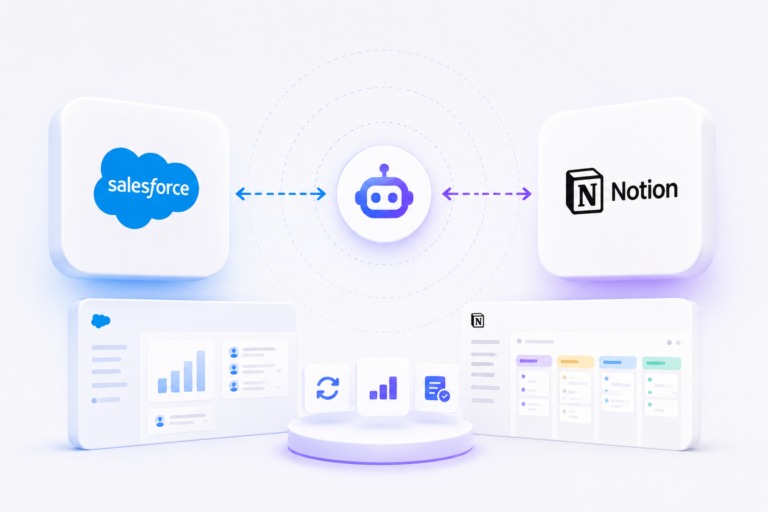
Table of Contents
Quick Answer
A Salesforce migration to Notion isn’t a simple export-import process. It requires careful planning, data cleansing, and a clear decision on one thing first: are you replacing Salesforce, or keeping it as is? Both are legitimate paths, and the right one depends on team size, pipeline complexity, and the level of governance your sales process actually needs. This guide covers when full migration makes sense, when to stay on Salesforce, and how to execute a clean migration without losing data along the way.
Why Trust This Content
At Camel Tech, we have implemented Notion, ClickUp, and Monday.com across 100+ businesses, including multiple Salesforce migration projects, all landing in Notion. We’ve seen what works, what breaks, and where AI agents can bridge the gap.
We are a Notion Consulting Partner, a Monday.com Official Partner, and a Certified ClickUp Consultant. For Ring Digital, a performance marketing agency, that migration grew into a full Notion business operating system connecting CRM, revenue operations, billing, project management, and executive reporting, with 15+ automated workflows now running the business day-to-day.
Methodology of This Article
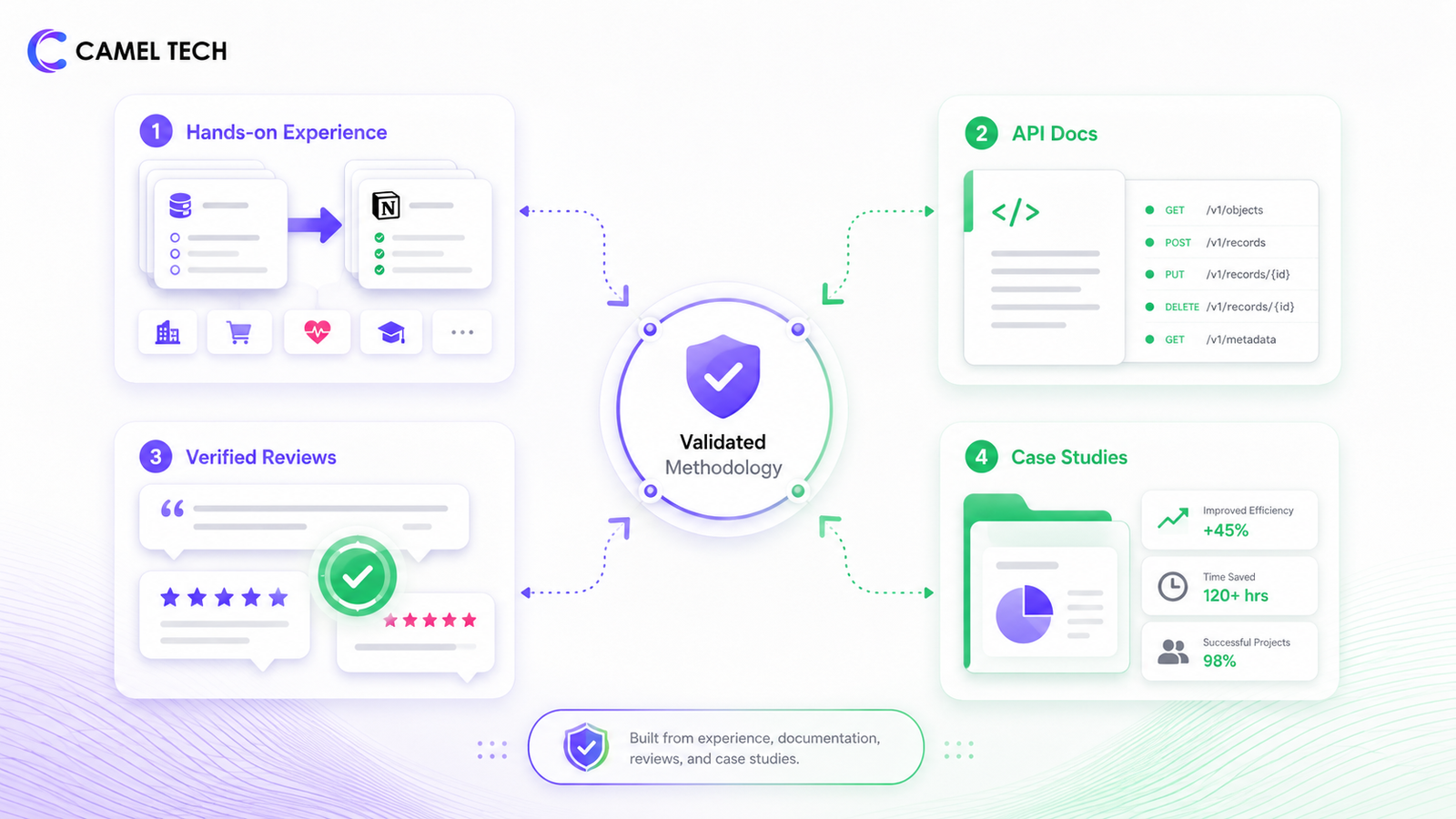
This content is built on:
- Hands-on experience running Salesforce migration projects into Notion across multiple industries
- Official Notion API documentation
- Verified user reviews from Software Advice and G2
- Real-world case studies from teams that attempted full migrations
Key Takeaways
Can you fully replace Salesforce with Notion?
It depends on how you build it. Notion has solid native dashboards, forecasting views, and workflow automations. Salesforce’s version goes deeper into advanced reporting and validation logic, but Notion’s equivalents are functional and widely used in production. With the right external tools, including Zapier, Make, or n8n, teams of any size can go further and replicate almost all of Salesforce’s structural enforcement inside Notion.
Team size isn’t the deciding factor. If a Salesforce setup doesn’t rely on advanced dashboards or workflows, that setup can be rebuilt in Notion regardless of headcount. What actually matters is how deliberately you build it: automation tools to enforce data flows, agents to handle pipeline reporting, and clear team norms to replace the structural enforcement Salesforce provides by default.
Where Notion still lags is narrower than it looks at first glance. Audit trails aren’t a gap; Notion Enterprise includes audit logs, just less mature than Salesforce’s. Territory management and quote-to-cash aren’t native to Notion either, but they’re buildable through third-party automation tools like Zapier, Make, or n8n, bridging Notion to dedicated routing or quoting tools- not a native equivalent to Salesforce’s built-in modules, but functional. Deep regulatory or compliance tooling is the one area where a dedicated platform still has a real edge. For nearly everyone else, a standalone Notion build, done deliberately, is a real option, not just a consolation prize.
What is the best approach for most companies?
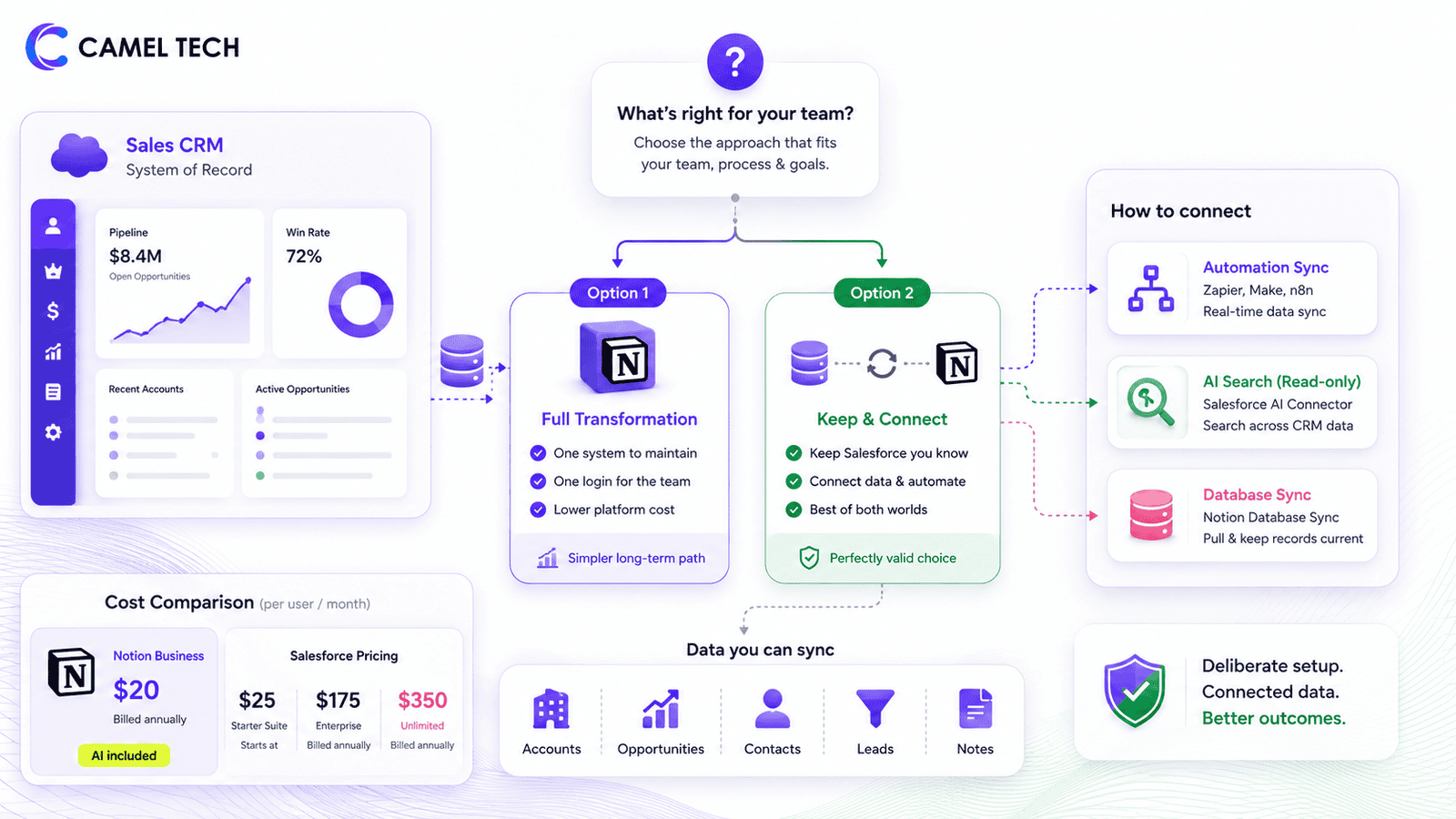
It depends on what your team values more. If you enjoy Salesforce’s functionality and are used to how it works, keeping it is a perfectly good answer in its own right. If Notion’s simpler, more flexible day-to-day experience is the priority, full transformation is the simpler long-term path: one system to maintain, one login for the team, no cost of running two platforms in parallel.
How much does Notion cost compared to Salesforce?
Notion Business runs $20/user/month billed annually, or $24/user/month billed monthly, with Notion AI bundled in. Salesforce Starter Suite starts at $25/user/month, but most companies pay significantly more. Enterprise runs $175/user/month, and Unlimited runs $350/user/month, both billed annually.
That cost concern also appears in verified customer feedback. Cameron F., a Director at a 10,000+ employee insurance company, wrote: “The cost of the salesforce platform can be hard to justify its use especially for non fortune 500 companies.”
What data can you sync between Salesforce and Notion?
Accounts, opportunities, contacts, leads, and notes via third-party automation tools like Zapier, Make, or n8n. Notion also has two native options as of 2026: the Salesforce AI Connector (Enterprise plan required) lets Notion AI search across accounts, leads, opportunities, and contacts, but it’s a read-only search layer, not a database sync. Separately, Notion’s Database Sync feature, launched in May 2026, can pull Salesforce records into a Notion database and keep them current, but it requires writing sync logic and deploying it via Notion’s developer CLI rather than a no-code setup.
When to Keep Salesforce
Before diving into the “how,” be honest about what staying on Salesforce buys you.
Salesforce’s depth is still a genuine advantage for teams that need it. Marc Raffa Jr., a Digital Media Specialist, described it this way in a verified Software Advice review: “It’s a highly capable system that goes far beyond basic CRM functionality.”
Keep Salesforce as your system if:
- Your pipeline is big enough that reporting can’t be eyeballed anymore, and you’re not ready to invest in the automation and agents that replace Salesforce’s reporting engine.
- You need deep, multi-dimensional forecasting today. Notion’s chart blocks and database automations now handle a meaningful share of standard reporting natively, but questions like ‘what’s our win rate by deal source for Q3?’ are still faster to answer in a dedicated forecasting tool without custom setup.
- You and your team like Salesforce’s interface and workflow, and don’t want to switch systems just because a newer option exists. Preference is a legitimate reason to stay on its own, not just a capability gap
When to Migrate to Notion
Standalone Notion, without keeping Salesforce running in parallel, is the right call if:
- Your team already lives in Notion. Notion is open all day for meeting notes, project tracking, and internal docs. Putting CRM data there means reps actually see it.
- Salesforce adoption is low, reps log in rarely, and updates lag what’s actually happening in deals. That’s usually a sign the team has already moved on in practice, even before the systems catch up.
- You want better note-taking. Salesforce activity logging feels like filling out a form. Notion note-taking feels like writing in a document. Reps write longer, more detailed notes because the interface doesn’t fight them.
- Notion AI adds real leverage once you’re in. Since May 2025, it’s been bundled into the Business and Enterprise plans rather than sold separately, so your team can summarize call notes in one click, auto-fill deal properties from meeting content, ask questions like “what was agreed in last week’s Acme call?” and get instant answers, and generate pipeline summaries across deal pages, all without leaving Notion.
- You need flexibility. In Salesforce, adding a custom field requires admin access and sometimes a consultant. In Notion, property permissions depend on workspace settings. If database editing is restricted, you need the appropriate permissions to add properties. However, for teams on appropriate plans with proper permissions, adding a property is still significantly faster and more intuitive than Salesforce’s admin-driven process.
How to Connect Salesforce to Notion: 5 Methods
There are five ways to connect them, and only some of them involve an actual Salesforce migration: Notion’s native AI Connector for search, Notion’s native Database Sync for a code-based direct sync, third-party automation tools for no-code database sync, custom AI agents for intelligent two-way sync, and a rebuild-then-migrate approach using those same automation tools if you’re leaving Salesforce for good. If you’re keeping Salesforce, Method 1 gives your team Notion-based search visibility into it without changing where the actual CRM work happens. The other four are for teams migrating fully.
Method 1: Notion's Salesforce AI Connector (Enterprise Only)
Notion offers a native Salesforce AI Connector that integrates Salesforce with Notion AI, allowing your team to query CRM data without leaving Notion.
What it does:
- Ask Notion AI questions about your pipeline (‘What’s the status of the Acme deal?’) and get answers pulled from Salesforce, though the underlying data can lag behind live Salesforce records by hours to days between syncs
- Search across Salesforce accounts, leads, opportunities, and contacts from within Notion
- Surfaces context from Salesforce alongside your Notion docs and meeting notes
Key Limitations:
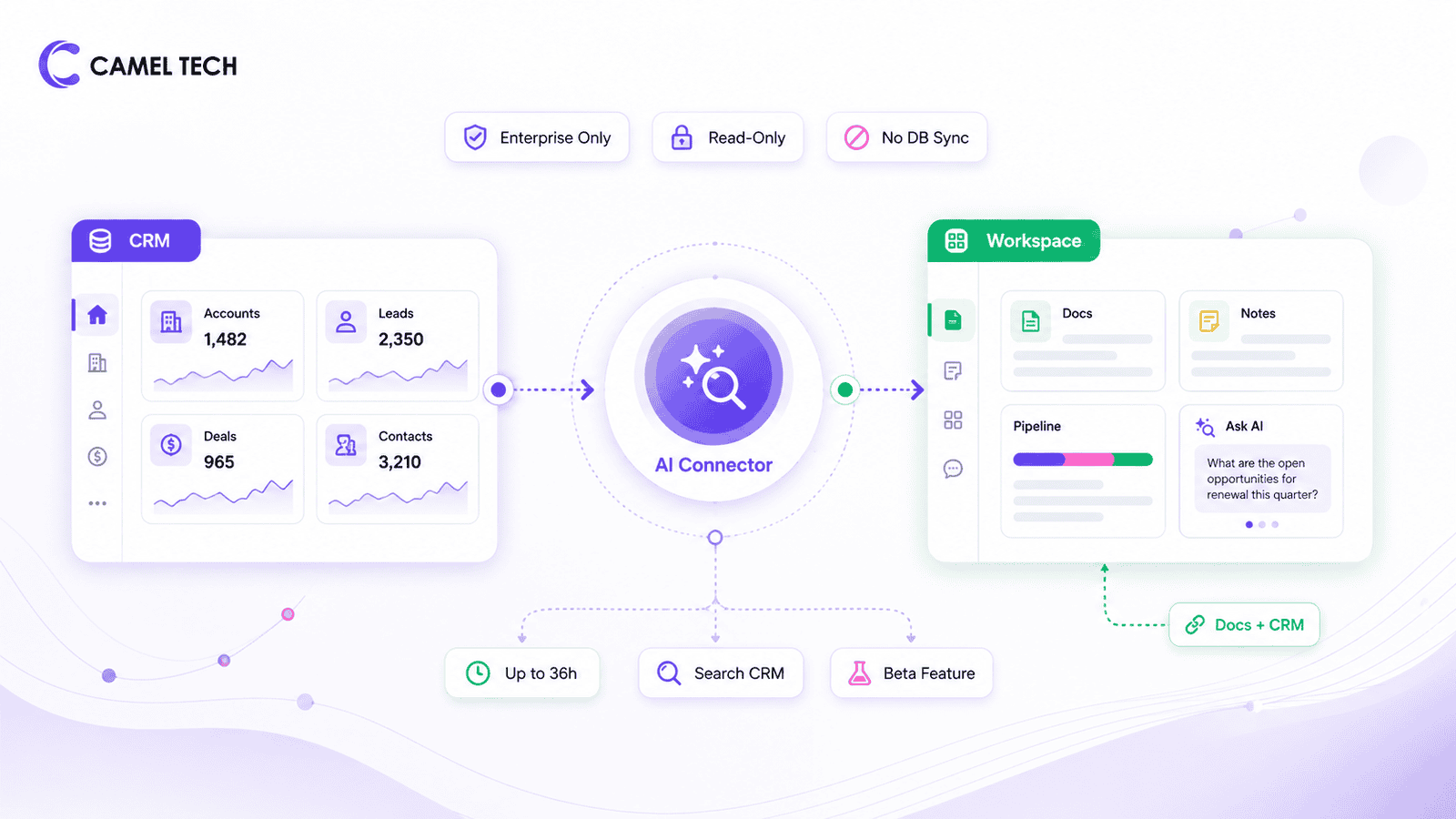
- An enterprise plan is required. You must be a Notion workspace owner on Enterprise, plus a Salesforce Admin, to connect.
- Read-only. Notion AI can search Salesforce data and answer questions, but nothing flows back to Salesforce, and it doesn’t create new Salesforce records.
- Not a database sync. This connector won’t populate a Notion database with rows of Salesforce records. Notion’s own Database Sync feature can do that now (see below), or use Method 3, 4, or 5 for a no-code, agent-based, or full-rebuild option
- Initial sync takes up to 36 hours. Don’t expect instant access right after connecting.
- Beta feature. Functionality is still being expanded.
- No field-level permission enforcement. The connector doesn’t respect Salesforce’s field-level security or retention rules, so anything a rep’s Salesforce profile can see becomes searchable through Notion AI regardless of Salesforce-side restrictions.
How to set it up:
- In Notion, open Notion AI and click All Sources → Connect apps → Salesforce
- Grant access when redirected to Salesforce
- Wait up to 36 hours for the initial sync to complete
- Ask Notion AI about deals, contacts, or pipeline; it pulls answers from Salesforce directly
If you need Salesforce records to appear as actual rows in a Notion database (not just be searchable via AI), use Method 2, 3, 4, or 5 below.
Method 2: Notion's Native Database Sync (New)
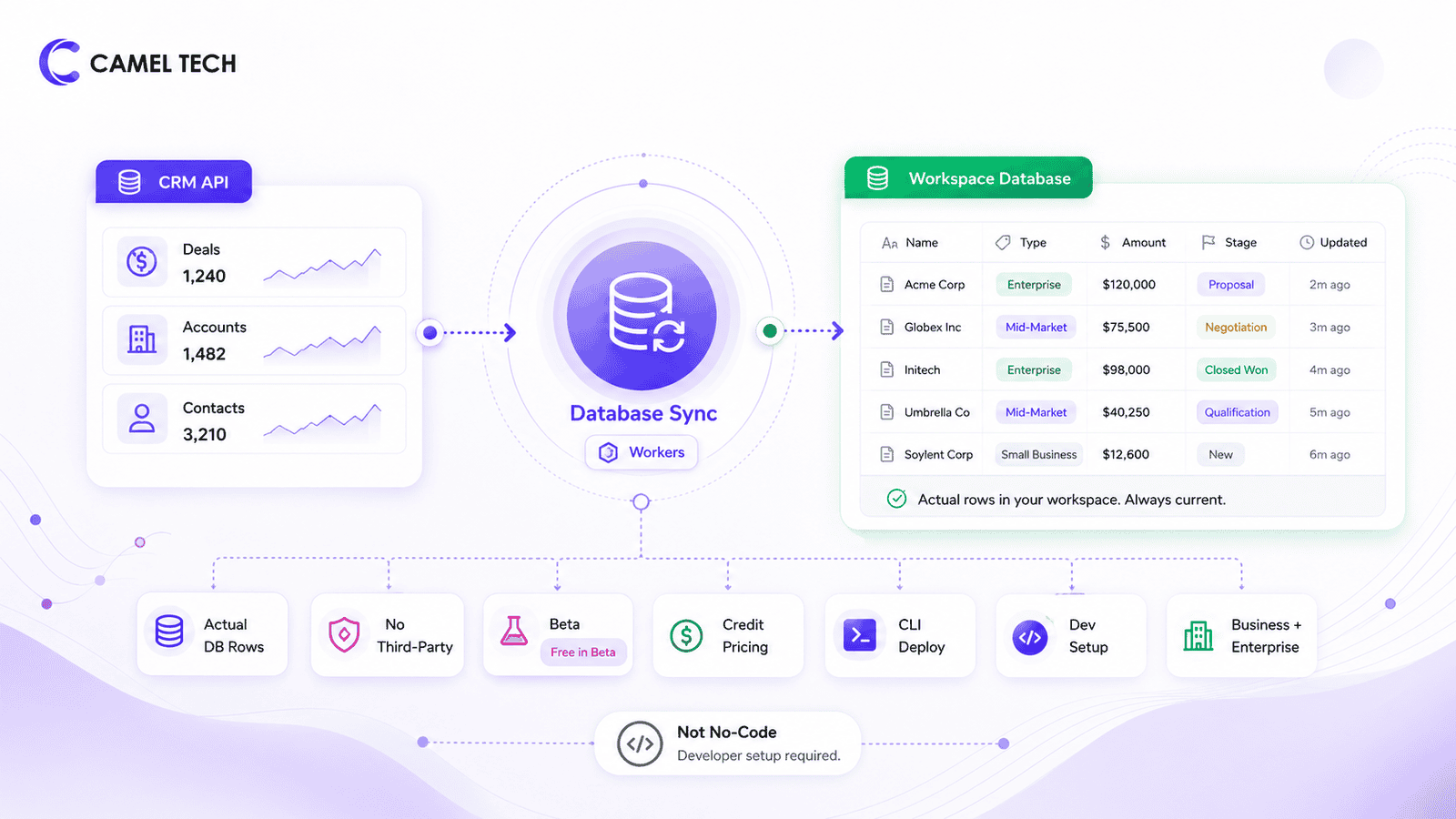
Notion launched Database Sync as part of its Developer Platform on May 13, 2026. Powered by a feature called Workers, it pulls records from any data source with an API, including Salesforce, Zendesk, and Postgres, directly into a Notion database and keeps them current, without a third-party tool in between.
The release marked a shift for a company built around notes and docs, not infrastructure. As Notion co-founder and CEO Ivan Zhao put it at the launch: “It’s true that, historically, Notion hasn’t been the most developer-focused platform.”
The release marked a shift for a company built around notes and docs, not infrastructure. As Notion co-founder and CEO Ivan Zhao put it at the launch: “It’s true that, historically, Notion hasn’t been the most developer-focused platform.”
What it does:
- Syncs Salesforce records (deals, accounts, contacts) into rows in an actual Notion database, not just a searchable index
- Runs on Notion’s own infrastructure through a feature called Workers, so there’s no separate server to host or maintain
- Free to use during the current beta period on Business and Enterprise plans, including Business trials, with Workers starting to consume Notion credits on October 15, 2026.
Key limitation: This isn’t a no-code setup. You write the sync logic yourself, or have a developer or consultant do it, then deploy it through the Notion CLI. Deploying and managing Workers is limited to Business and Enterprise plans, even though the CLI itself is available on all tiers. For teams without in-house development resources, Method 3 (automation tools) or working with a consultancy to build this is the more practical route today.
Method 3: Automation Tools
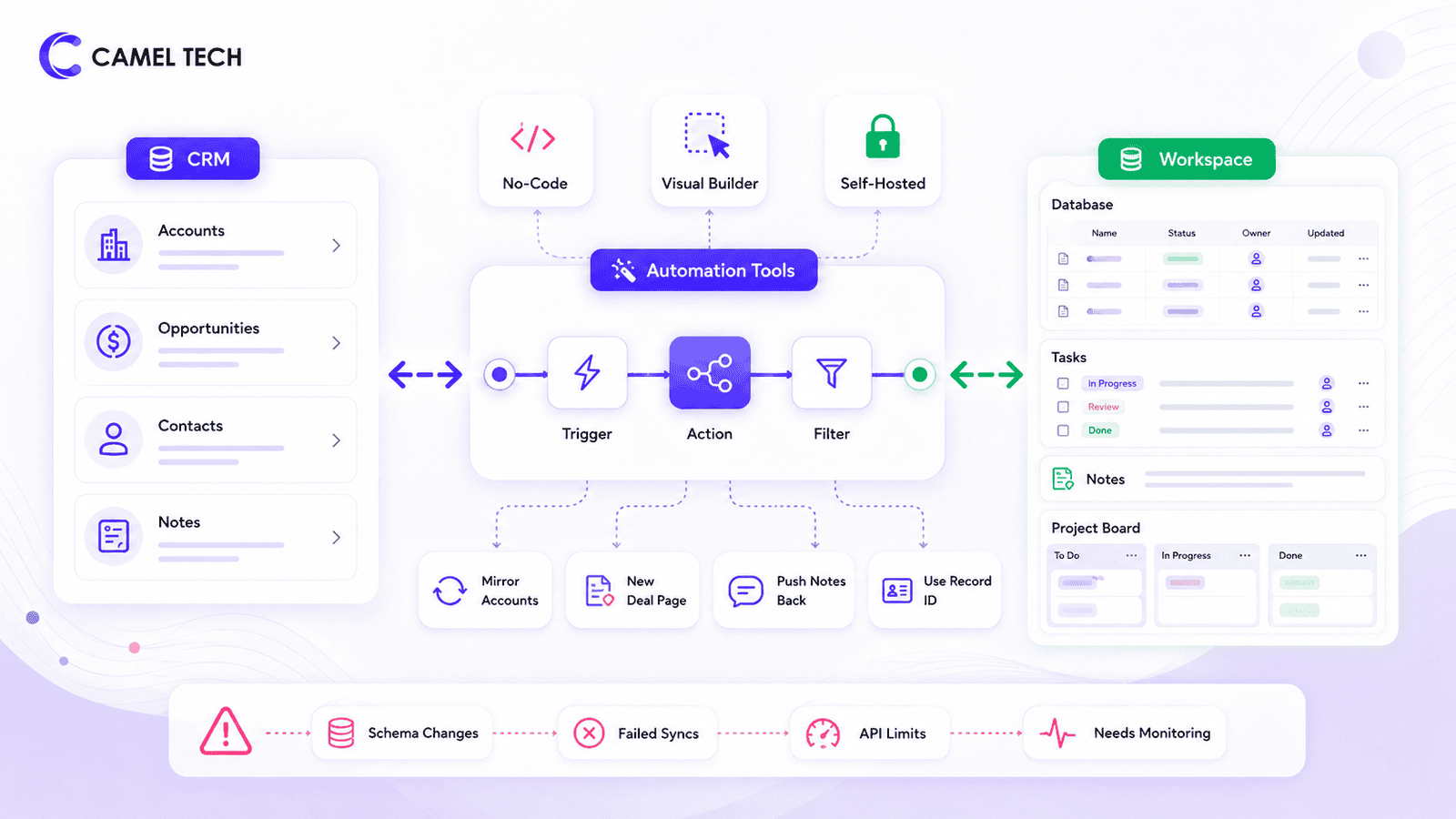
- For two-way sync, bulk imports, and custom workflows, third-party automation tools remain the most accessible no-code option.
- Zapier supports thousands of apps, including Salesforce and Notion. You can create custom workflows to centralize new sales deals, sync contact records, or update tasks.
- Make offers similar coverage with a visual, node-based workflow builder, useful for teams that want to see the full data flow at a glance rather than a linear step list.
- n8n is the open-source, self-hostable option in this category. It costs nothing to run beyond your own server if you’re comfortable managing infrastructure, and it gives you full control over how Salesforce and Notion data map to each other.
Key workflows possible with automation tools:
- Mirror Salesforce accounts into Notion on a schedule (SOQL query → Notion create or update)
- Create Notion pages for new Salesforce opportunities automatically.
- Push Notion research notes back to Salesforce using record IDs.
- Use Salesforce ID as a Notion property to avoid duplicate pages.
- Field mappings need to be revisited whenever either platform’s schema changes, and someone has to own monitoring for failed syncs and API limits. This isn’t a set-it-and-forget-it layer.
Method 4: AI Agents for Smart Sync (Advanced)
For teams that want the best of both worlds, AI agents can handle the synchronization intelligently. We’ve built this kind of agent before; for one client, an AI agent now manages 300+ daily emails, so the team only touches what actually needs a human.
What this actually breaks down into:
Automation, not AI, handles the mechanical part:
- Monitors Salesforce for new deals and creates matching Notion pages
- Syncs deal values, stages, and close dates bidirectionally
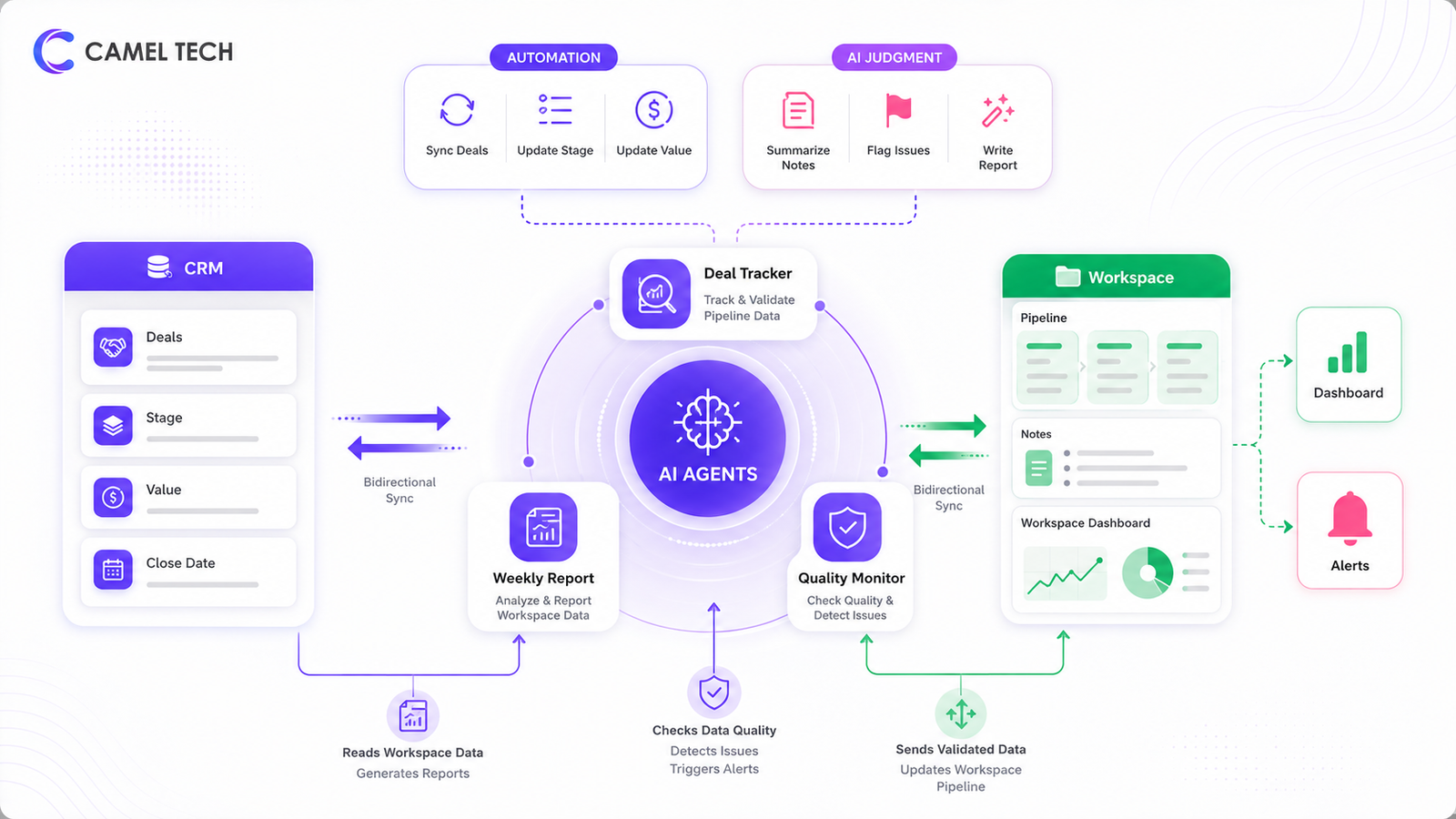
AI handles the parts that need judgment:
- Summarizes Notion call notes and logs them back to Salesforce activity records
- Flags data quality issues worth a human look
- Writes pipeline reports in plain language instead of a raw export
For another, we set up three agents to cover the recurring failure points:
- Salesforce deal tracker – syncs validated pipeline data into Notion automatically
- Weekly reporting agent – reads Notion deals, calculates metrics, and writes to Google Sheets dashboard.
- Data quality monitor – scans daily and posts Slack alerts for missing values or stale deals
Method 5: Rebuild the Structure First, Then Migrate
If you’re moving off Salesforce entirely rather than keeping it running alongside Notion, the most reliable approach isn’t syncing records one at a time; it’s rebuilding Salesforce’s structure in Notion first, then migrating the data once.
Alex Sherwood, a Notion consultant who spent three years as a Salesforce administrator, wrote on Medium about taking this exact route: “I used that knowledge to create a version of Salesforce in Notion.”
Alex Sherwood, a Notion consultant who spent three years as a Salesforce administrator, wrote on Medium about taking this exact route: “I used that knowledge to create a version of Salesforce in Notion.”
How it works:
- Map your Salesforce objects and their relationships- Accounts, Contacts, Opportunities, Activities- to Notion databases and relation properties before moving any data
- Use Zapier, Make, or n8n to recreate the validation and automation logic your Salesforce setup relies on: required fields, picklist-equivalent select properties, and stage-based workflow triggers, as Notion automations
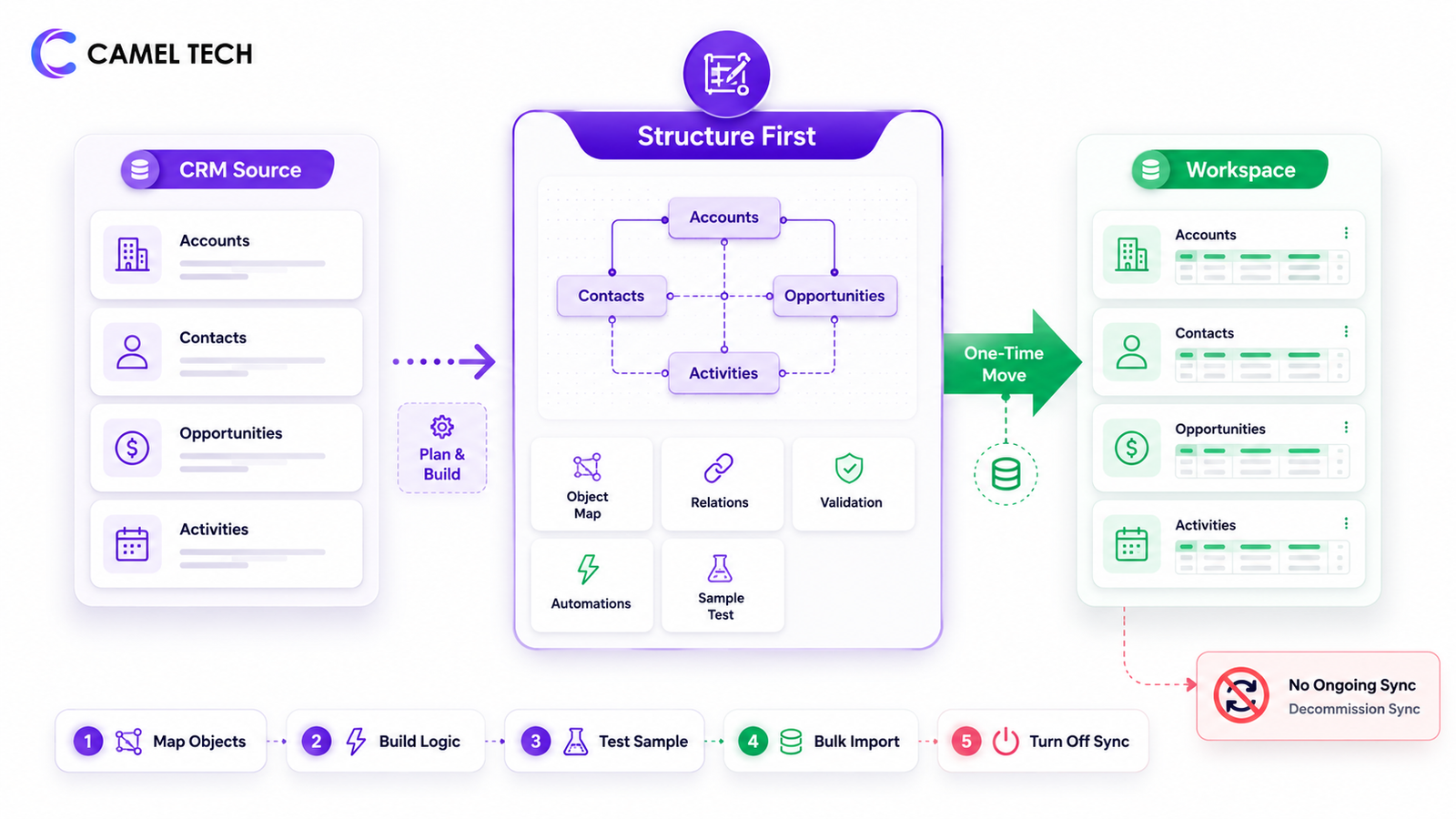
- Once the structure and logic are built and tested against a sample of records, run a one-time bulk migration through the same tool to move everything over
- Decommission the sync once migration is complete rather than leaving an ongoing pipeline running between two systems
This takes more setup work upfront than Method 3’s ongoing sync, but it avoids maintaining a permanent bridge between two platforms once you’ve committed to leaving Salesforce for good.
Step-by-Step Salesforce Migration Plan
Phase 1: Audit Your Salesforce Data (Week 1)
Before migrating anything, understand what you have.
- Identify active records. Don’t sync every Account or Opportunity. Filter to relevant records only: open opportunities, accounts above a certain ARR, or deals assigned to specific reps. Not every Salesforce record needs a Notion mirror.
- Map your objects. Decide which Salesforce objects need to be in Notion. Most teams start with Accounts, Opportunities, Contacts, and Notes. Ring Digital, the performance marketing agency referenced above, took this step further: rather than mirroring Salesforce’s object structure one-for-one, the mapping brought in campaign, billing, and commission data that had never lived in Salesforce at all, building toward one connected workspace instead of a like-for-like CRM copy.
- Clean your data. Remove duplicates, fill in missing values, and standardize picklists. Data quality problems in Salesforce become bigger problems when moved to a less structured system.
- Plan your import in batches. Most no-code tools cap CSV uploads well below your full Salesforce object count. Split large objects by date range or record type instead of trying one export.
- Plan for attachments separately. Files, contracts, and recordings on Salesforce records don’t move through any of the sync methods above. Export them from Salesforce Files and decide where they’ll live in Notion, linked pages or an external drive, before cutover.
Phase 2: Design Your Notion Database Structure (Week 1-2)
Create connected databases in Notion that mirror your Salesforce objects.
Typical structure for a sales team:
- Companies database: name, industry, size, website, annual revenue, main contacts, deals
- Contacts database: name, email, phone, company, title, source, notes
- Deals database: company (relation), value, stage, close date, owner, probability, next step
- Activities database: type (call, email, meeting), date, contact, deal, notes
Set up board views. Group deals by stage: Prospecting, Discovery, Proposal, Negotiation, Closed Won, Closed Lost. The visual pipeline keeps reps engaged.
Create templates. Build deal page templates that pre-populate with sections: Discovery Questions, Competitive Situation, Technical Requirements, Pricing Discussion, and Next Steps. New deals start with structure instead of a blank page.
Ring Digital’s structure extended this same pattern past the deal stage: Lead → Account → Campaign → Product Line Items → Billing Schedule → Invoice → Commission Split → Payment Tracking → Revenue Reporting, so the CRM doesn’t stop at Closed Won; it feeds directly into billing and finance.
Phase 3: Set Up the Sync (Week 2-3)
Choose your method based on your needs.
| Need | Recommended Method |
|---|---|
| Ask questions about Salesforce data without leaving Notion | Method 1: AI Connector |
| Salesforce records living natively in a Notion database, developer resources available | Method 2: Database Sync |
| An ongoing sync running during a longer transition, no developer needed | Method 3: Automation tools (Zapier, Make, n8n) |
| Two-way sync plus automated data quality checks and reporting | Method 4: AI agents |
| Full migration, one-time move, no ongoing sync needed once you're off Salesforce | Method 5: Rebuild the structure, then migrate |
Most teams doing a full migration should go straight to Method 5. Method 3 or Method 4 make sense if you want an ongoing sync running during a longer transition instead of a one-time move. Ring Digital’s migration paired a structural rebuild with Zapier automation that stayed in place well past the migration itself, generating billing schedules, invoices, and commission splits, and syncing to QuickBooks, as permanent operating infrastructure rather than a temporary bridge.
Pro tip: Use Salesforce ID as a Notion property. Before creating a new page, query the database; if it’s found, update its properties; otherwise, create it. This prevents duplicate pages.
Phase 4: Train Your Team and Monitor (Week 3-4)
- Set data entry expectations. In Notion, nothing is required. Decide which fields are mandatory and enforce them through team norms or automated checks.
- Create a data quality agent. Scan daily and post a summary to Slack: deals with missing values, deals with past-close-date not closed, deals not updated in 2+ weeks. Ring Digital’s system runs on this same pattern at a larger scale; automated due-date monitoring and Slack notifications surface revenue and billing issues as they happen, across 15+ automated workflows, instead of catching them in a month-end review.
- Start with a pilot. Run Notion as your live system for 2-4 weeks while keeping Salesforce active in read-only mode, a temporary validation window, not a permanent parallel setup.
- Validate before cutover. Spot-check a sample of migrated records against the original Salesforce data during that window, and don’t retire Salesforce licenses until the data checks out.
What Camel Tech's Experts Say
On what the migration actually required:
“This wasn’t a straightforward Salesforce-to-Notion data migration. We rebuilt Ring Digital’s CRM around 8+ interconnected operational databases, covering Accounts, Campaigns, Product Line Items, Billing Schedules, Invoices, Commission Splits, Activities, and reporting. The important engineering work was preserving those relationships and making data move reliably from the initial client and campaign records all the way through billing, commissions, and revenue reporting.”– Abdullah Al Mubin, Operations & Automations Specialist, Camel Tech
On whether Notion can actually replace Salesforce at this scale:
“Ring Digital now has 15+ automated workflows supporting day-to-day operations across the CRM. These cover processes such as billing schedule generation, invoice creation and status changes, commission calculations and approvals, campaign and line-item pause logic, task creation, dashboard synchronization, and notifications. Some workflows span 4 to 6 connected database layers, so the real challenge was making every update propagate correctly without duplicate records or inaccurate financial data.”– Abdullah Al Mubin, Operations & Automations Specialist, Camel Tech
Where Does Notion Still Differ from Salesforce?
Most of the gap between the two platforms is buildable. A few things still don’t have a workaround.
| Feature | Salesforce | Notion |
|---|---|---|
| Required fields | ✅ | ✅ (via required properties) |
| Picklist enforcement | ✅ | ✅ (via select-type properties) |
| Validation rules | ✅ | ✅ (via formulas and automations) |
| Complex reporting | ✅ (native) | ⚠ (native charts cover standard reporting; deep multi-variable analysis still lags) |
| Forecasting | ✅ | ✅ (native forecasting views; less mature than Salesforce’s dedicated tools) |
| Role-based permissions | ✅ (granular) | ✅ (page-level natively; granular role-based control needs Enterprise) |
| Audit trails | ✅ | ✅ (Enterprise plan; less mature than Salesforce’s) |
| Native email integration | ✅ | ✅ (via the native Mail & Calendar connection; Notion AI and agents can search, draft, send, and trigger on new email from a connected Gmail account) |
| Workflow automation | ✅ | ✅ (native database automations, no agents required) |
| Territory management | ✅ | ✅ (via third-party automation tools; not a native Salesforce-equivalent, built through Zapier, Make, or n8n bridging territory logic into Notion) |
| Quote-to-cash | ✅ | ✅ (via third-party automation tools bridging Notion to dedicated quoting, e-signature, or billing tools; not a native CPQ suite) |
Why Does Pipeline Architecture Matter More Than Data Quality?
Pipeline architecture, not data quality, is where teams usually get stuck. Data quality itself is solvable; a well-built Notion CRM with a daily data-quality agent scanning for missing fields and flagging stale deals can match the structural discipline Salesforce enforces.
The real difference is pipeline architecture, and it’s a design choice, not a deficiency.
Former Salesforce administrator Alex Sherwood highlighted the same architectural advantage when explaining how Notion can function as a CRM: “The piece of functionality that really sets Notion apart from spreadsheets and enables users to replicate the structure of Salesforce is relations.”
Salesforce converts a lead into an opportunity, account, and contact through a single built-in action, the same way for every business, regardless of how they actually sell. In Notion, you design that flow once, matching it to how your team’s pipeline actually works: separate databases for leads and opportunities, relational properties connecting them, and a conversion step built around your process rather than a generic one. Skip that design step, and you’ll feel it in orphaned leads and duplicate contacts; get it right up front, and Notion’s pipeline is exactly as reliable as Salesforce’s, while staying reshapable the moment your process changes, something Salesforce’s fixed action was never built to do. That’s the same call Ring Digital’s migration made: rather than replicating Salesforce’s structure, the CRM was rebuilt around how the business actually operates, and it’s what let it grow into a full operating system instead of staying a CRM replacement.
Notion’s native Mail & Calendar connection adds another piece Salesforce doesn’t hand you for free: link a Gmail account and Notion AI, and agents can search the inbox, draft and send replies, fire automations on new email, and read attachments, directly inside the same system your pipeline lives in, no separate email-to-CRM tool required.
The Verdict: Migrate for Most Teams, Keep Salesforce for a Few
After working through real implementations, the clear recommendation is:
- Full transformation to Notion is viable regardless of team size, when it’s built deliberately. What actually determines the outcome is process complexity and how much you invest in the build, not headcount.
- A simple sales process migrates almost immediately, no debate. The adoption win is real, and you can eyeball a small pipeline without needing a reporting engine at all.
- A more complex process, more reps, more deals moving at once, needs more deliberate building: automation tools that enforce data entry, AI agents that handle pipeline reporting, and team norms that replace Salesforce’s structural validation. That build effort is what makes Notion genuinely better than Salesforce, not just an acceptable substitute: Salesforce’s discipline plus Notion’s flexibility and adoption, in one system instead of two.
- In a recent client engagement, we replaced Salesforce with Notion for a 20-person team and rebuilt reporting natively inside the new system, proof that scale on its own isn’t what decides this.
- If your team likes how Salesforce works and doesn’t want to change, keeping it is a legitimate choice on its own. If Notion’s simpler UI and day-to-day experience is what you’re after, full transformation is worth building for, whatever size your team is. Not sure which fits? That’s what a discovery call is for.
| Situation | Recommendation | Why |
|---|---|---|
| Simple sales process, any team size | Migrate to Notion | Adoption wins are immediate; a simple pipeline doesn’t need a dedicated reporting engine |
| More complex process, more reps, more deals in flight | Migrate to Notion, built deliberately | Automation tools, AI agents, and team norms replace Salesforce’s structural enforcement; the build effort is what makes it work at any scale |
| Team prefers Salesforce’s functionality and experience | Keep Salesforce | Preference is a legitimate reason to stay, not just a capability gap |
| Deep compliance or regulatory tooling required | Keep Salesforce | The one area where a dedicated platform still has a real edge |
Frequently Asked Questions (FAQ)
A Salesforce migration to Notion means moving your CRM data, and often your reporting, billing, and workflow logic, out of Salesforce and into a structure you build in Notion. It's not a one-click export. It requires mapping your Salesforce objects to Notion databases, rebuilding validation and automation, and choosing one of five connection methods depending on your team's technical resources.
Not in one click, no. Notion's AI Connector doesn't support bulk sync. Notion's newer Database Sync feature can pull records in bulk, but it's a developer-oriented setup, not a native export button. For a one-time full migration, Method 5 (rebuild the structure, then bulk-move the data through Zapier, Make, or n8n) is the most reliable no-code path.
Store the Salesforce record ID as a Notion property. Before creating a new page, query that field first. If a match exists, update the properties. If not, create a new page. This keeps your Notion database clean regardless of how many times a sync runs.
Notion offers several CRM templates in its template gallery, including a free Sales CRM built by Notion itself. Paired with native database automations and dashboard-style views, it can support real validation and reporting, but out of the box, it's lighter than a dedicated CRM like Salesforce; you'll want to build in the enforcement and reporting layers yourself.
Yes. Specify custom field API names (with __c suffix) in your SOQL query. Map each to a Notion property by name.
Notion Business: $20/user/month billed annually ($24/user/month billed monthly), with Notion AI bundled in.
Salesforce Starter Suite: $25/user/month, billed monthly or annually. Enterprise runs $175/user/month, and Unlimited runs $350/user/month, both billed annually.
Most companies also pay for add-ons, implementation consultants, and support contracts on top of base licensing.
Yes, with the right build. Full transformation is viable if you invest in automation for data entry enforcement, AI agents for pipeline reporting, and clear team norms to replace Salesforce's structural validation. Keeping Salesforce is just as valid if your team likes how it works and doesn't want to change; that's a preference call, not a headcount cutoff.
Not Sure Which One Is
Right for You?
That’s exactly what we help businesses figure out.
At Camel Tech, we have helped 100+ companies implement Notion, ClickUp, and Monday.com across agencies, construction firms, accounting practices, ecommerce stores, and professional services businesses. We’ve done Salesforce migration projects into Notion, and AI agent integrations.
Want to figure out the right migration path for your team? Book a free discovery call, and we’ll tell you whether a full migration, staying on Salesforce, or a different platform is the right fit.
Read Related Articles
Compare 7 Airtable alternatives in 2026, including Notion, ClickUp, and Monday.com. See which tool fits

Compare the best AI automation agencies for SMBs in 2026. Verified Zapier, Make, and n8n

Thinking about switching CRMs? Here's the complete guide to migrating from HubSpot to Monday CRM:
Build a business that thrives without you
Unlock your ultimate life goals: Focus on high-leverage tasks, personal growth, and family time while pursuing your next big initiative.
Let's book a call with our expert.

Selected resource
Enter your email and we’ll send the resource directly to your inbox.
✓
Check your inbox
We’ve received your request and will send the resource to your email.
Please check your spam or promotions folder if you don’t see it shortly.